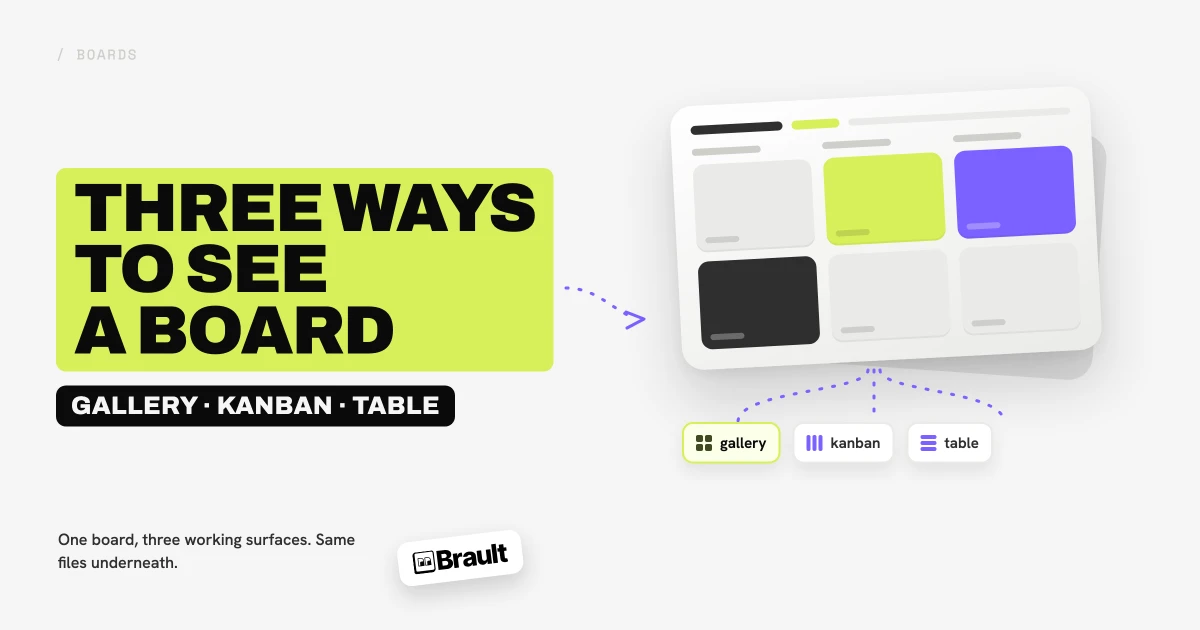
Brault Boards now render in three views: gallery, kanban, and table. It is the same board and the same files underneath, switched from a picker next to the board name, and the choice is remembered per board and per person. Boards shipped as kanban only in April 2026. Since 5 August 2026, every board can also be worked as a visual mosaic or as a spreadsheet-style grid.
The reason for the change is that a creative project does not stay in one shape. Picking selects from a shoot, chasing approvals, and filling in delivery metadata are three different jobs, and forcing all three through a column layout made two of them awkward.
Gallery view
Gallery is the default when you open a board for the first time. It lays the files out as a justified mosaic at their natural aspect ratio, the same layout as the presentation view in the files area, so a board of photography looks like photography rather than like a list.
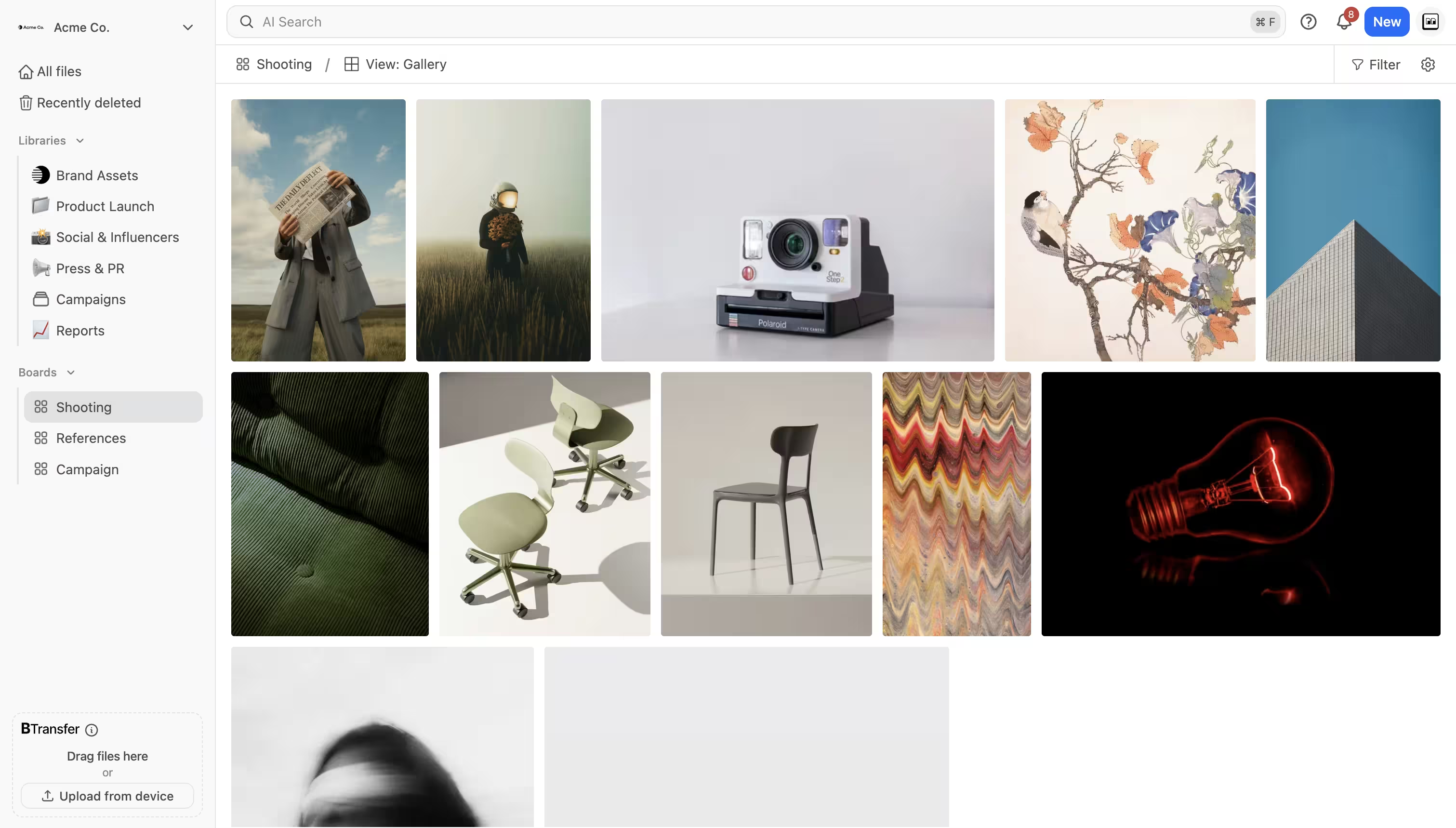
What it does:
- Select like a file browser. Click to select, Cmd or Ctrl to add, Shift to extend, and drag a marquee across empty space to sweep a block. Double-click opens the file drawer.
- Scrub video on hover. Hovering a video plays through its frames with the timestamp visible, so you can find the right take without opening anything.
- Reorder by dragging. A drag carries the whole selection when the tile you grabbed belongs to it, so moving twelve approved shots to the front is one gesture.
- Right-click for everything else. The same file menu as the rest of the board: details, download, rename, duplicate, tags, share, Brault Transfer, remove from board, move to trash.
Gallery is the right surface while the work is being made and reviewed visually. Culling a shoot, comparing three color grades, choosing which of six layouts goes to the client.
Kanban view
Kanban is unchanged. Columns come from a board property, cards are files, and dragging a card between columns changes the property value for everyone in real time.
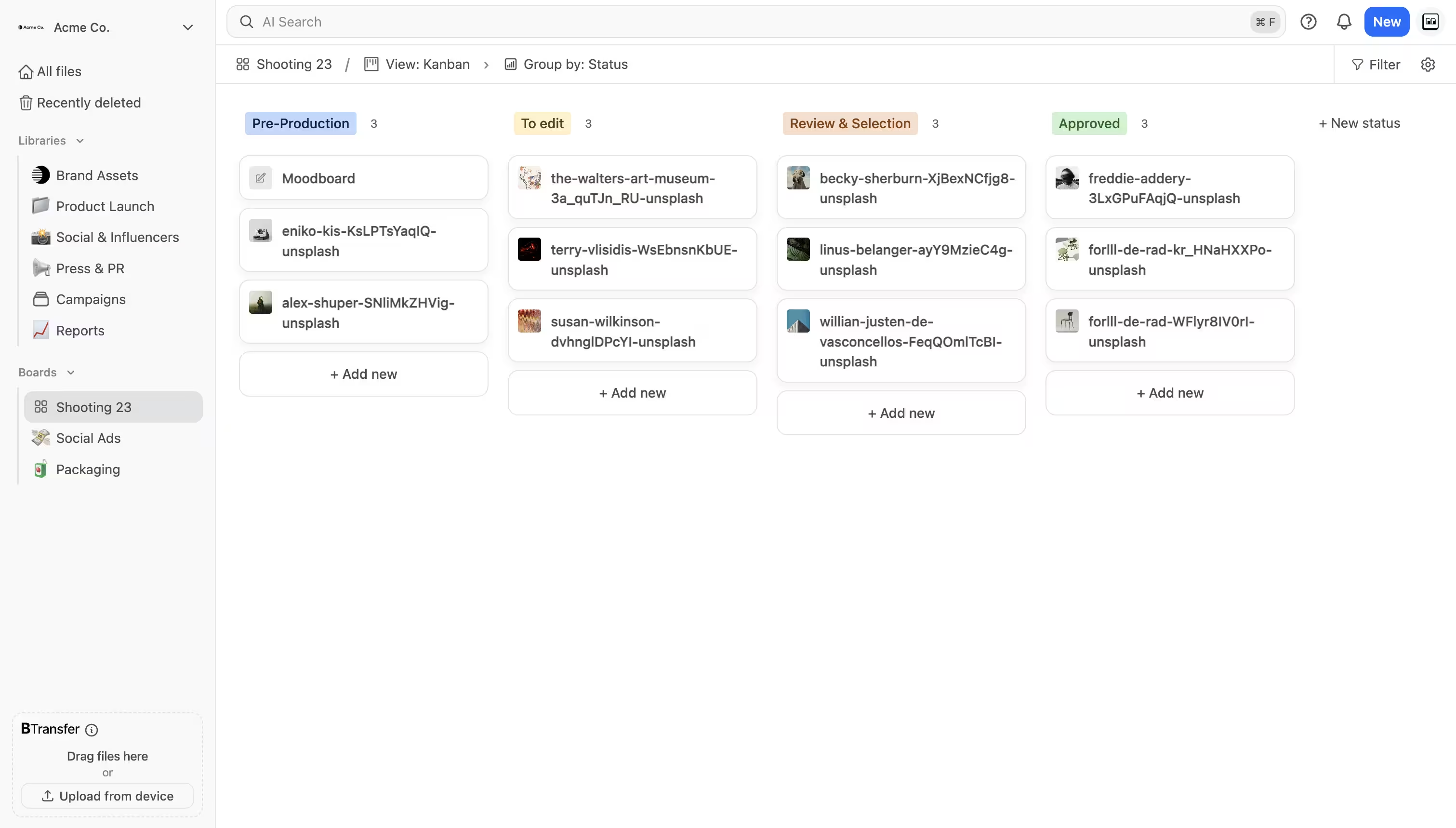
Two things did change around it. Group by now appears only in kanban, because grouping into columns is a kanban concept and it was confusing everywhere else. And the right-click menu now opens for people with view-only access, showing the read-only actions (details, download, go to file location) instead of refusing to open at all.
Kanban is the right surface once work is in flight. Its job is answering "what is with the client and what is with us" in one glance.
Table view
Table renders the board as a grid: a sticky File column with the thumbnail and name, then one column per board property, in the board's property order.
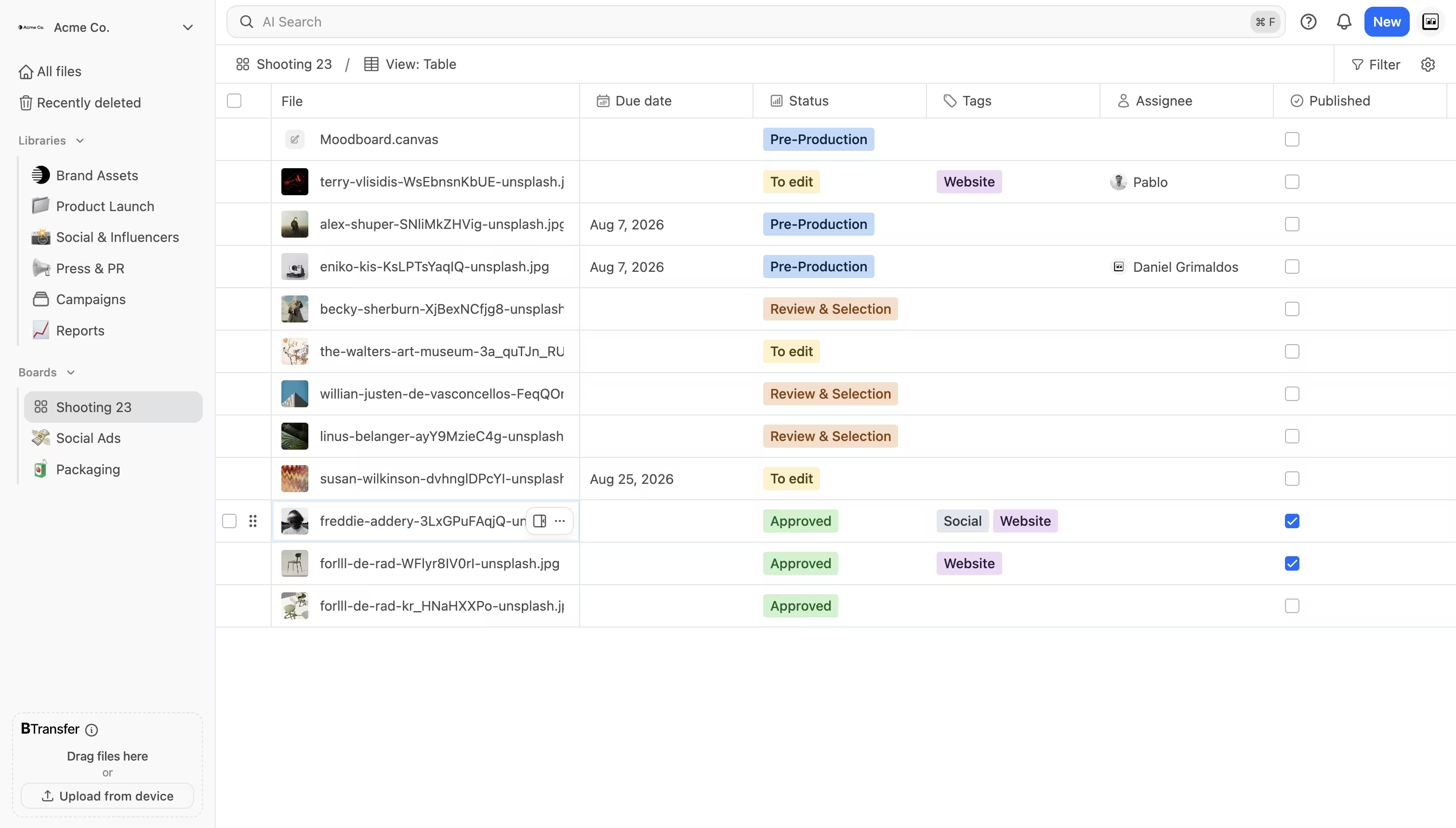
It works the way a spreadsheet works, which is the point:
- Click a cell to edit it. Arrow keys move the active cell, Enter opens the editor, Esc closes it, Tab moves right. The editors are the same ones the file drawer uses, so a status is picked from the same badge list and a person from the same member selector.
- Select a range with Shift and click, or by dragging across cells.
- Copy and paste with Cmd+C and Cmd+V, including to and from Excel and Google Sheets. Values serialize as tab-separated text, so a column of delivery dates pasted from a media plan lands in the right cells. Labels that do not match an existing option are skipped rather than invented, and the snackbar reports how many cells applied and how many were skipped.
- Drag-fill from the corner of a selected range to repeat a block downward, with the same repeating behavior as a spreadsheet.
- Reorder rows from the left gutter, moving a multi-row selection as one block.
- Manage properties from the header if you have manage access: rename, edit options, delete, and add a new property from the trailing plus button.
Table is the right surface at the two ends of a project. Planning, when owners and dates go in for the first time. Delivery, when forty assets need usage rights, channel, and a delivery date filled in at once.
What carries across all three views
- Filters and search work everywhere. Every view sends the same query, so filtering to "shot by Marta, status Approved, images only" holds when you switch views.
- The view choice is yours alone. It is stored per board and per person in your browser, so a producer can live in kanban while a retoucher works the same board in gallery.
- Access levels apply per view. View access browses and, in table, can copy. Edit access reorders, edits cells, and pastes. Manage access adds and removes properties from the table header.
- Public shared boards stay kanban. The visitor experience is unchanged.
Availability
The three views are live for everyone with Boards, at no extra cost and with nothing to enable. Open any board and the view picker sits right after the board name.
Step-by-step instructions are in the Help Center: board views: gallery, kanban, and table, switch between board views, and edit board properties in table view.
Key takeaways
- Boards now render in three views: gallery (default on first open), kanban, and table.
- Gallery suits production and selects, kanban suits review and approval, table suits planning and delivery.
- Table view supports keyboard navigation, range selection, drag-fill, row reorder, and copy and paste with Excel and Google Sheets.
- Filters and search behave identically in all three views, and the active view is remembered per board for each person.
- Everything is gated by the board access level you already have: view browses, edit changes values and order, manage changes the properties themselves.
Related reading
- Introducing Boards: Manage Projects Where Your Files Live — how file-native boards work.
- Creative Project Management: A Practical Guide for Creative Teams — which view fits which stage of a project.
- Best Creative Project Management Software in 2026 — how boards compare with task-first suites.
Questions about how the views fit your workflow? Book a demo, or if something in them could work better for the way your team runs projects, tell us how it works for you.