Brand portals are live. Since 2026-10-09 the root of every Brault brandspace address, https://<username>.brault.app, is a public page you own: your logo and name, a tagline and description, a cover image or video, your website and social links, a sign-in form for members, and a Request access button for everyone else. It replaces the plain login page every brandspace used to have, it is included on every plan from Free up, and you edit it in Settings › Brandspace › Brand portal.
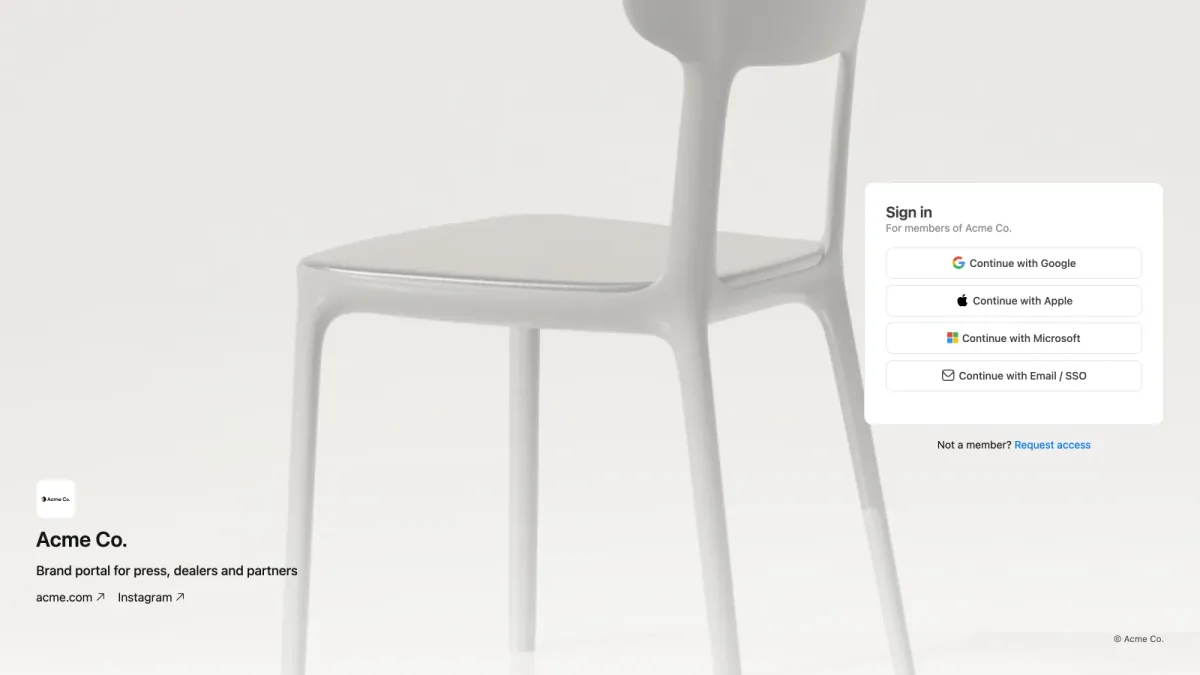
The portal above is the Acme Co. demo on the Cover layout: cover photo, brand block at the bottom left, sign-in card on the right.
What a brand portal is for
A brand portal is the address you give to the people outside your team who need your approved files: press, dealers, distributors, franchisees, agencies, freelancers, clients. Until now that address was a login page with no context, so most brands sent a shared link by email instead and the link went stale the moment the folder changed. The portal gives those people one permanent front door. Members sign in and land on their dashboard. People who are not members yet ask for access from the same page, and you decide who gets in.
Enterprise DAMs sell this as a separate module, usually under names like "brand portal", "media portal" or "press center". In Brault it is part of the brandspace, on every plan including Free, because the portal is only useful if every customer has one.
What is on the page
The portal is built from what you already have in your brandspace plus a few fields you fill in once:
- Logo and name come from your brandspace settings. The page carries your brandspace accent color and is always rendered in light mode, whatever theme your team uses inside the app.
- Tagline (up to 80 characters) and description (up to 280). Leave both empty and the page shows only your logo and name; the portal never renders placeholder text.
- Cover: one image (JPEG, PNG or WebP under 10 MB) or a short video (MP4, MOV or WebM, up to 60 seconds and 100 MB) that plays muted and loops its first 20 seconds. Brault reads the tone of the cover and puts white or dark text on it so the brand block stays readable.
- Links: your website and up to two social profiles, opening in a new tab.
- Sign-in with Google, Apple, Microsoft or email and SSO, the same options members use today.
- Request access, shown as
Not a member? Request accesswhen you allow it.
Four layouts place those elements: Minimal (centered, the default), Cover (full-bleed media with the brand block at the bottom left and the sign-in card on the right), Split (media on one side, sign-in on the other) and Stage (a framed image next to the sign-in card). A layout applies the moment you click it; everything else saves with Save.
How access requests work
When someone who is not a member opens your portal and clicks Request access, they fill in their name, work email, company and an optional message. The form is protected against bots and never reveals whether an email address already belongs to your brandspace. They see Request sent. {your brandspace name} will review it. and that is all that happens on their side.
On your side, everyone who can invite people gets a notification in the bell: "{name} requested access". The request waits in Users and roles, under the pending invitations, with the name, email, company and message. Review opens the normal invitation panel with the email already filled in, so you pick the role and the libraries the person should see and send the invitation. Reject sends a short email. Nothing is granted automatically, and the request never bypasses your plan's user limits.
You can switch the form off with the Allow access requests toggle. The portal then shows sign-in only.
Put the address on your website
The portal is meant to be linked from your own site. Copy the clean address from the field at the top of Settings › Brandspace › Brand portal (for example https://acme.brault.app), and add it to your footer or main navigation as "Brand portal", "Press kit" or "Partner portal". The HTML is one anchor:
<a href="https://acme.brault.app/">Brand portal</a>
The step-by-step guide, including what visitors and members see, is in the help center: How do I link my brand portal from my website?.
A few things worth knowing
- Who can edit it. The Owner, Admins and any custom role with brandspace settings. Everyone else sees the portal, not the settings.
- The footer. On Free and Lite the portal shows a small
Powered by Braultbutton. From Pro up it shows© {your brandspace name}and nothing from Brault. - Nothing changes for your team. Signed-in members who open the address still land on their dashboard. The
View pagebutton in the settings lets you, as an owner, look at the portal while signed in. - Old links keep working. Links to
/loginon your address redirect to the portal with their parameters intact, so OAuth returns, email links and bookmarks still arrive where they should.
Tell us how you use it
The portal is the front door; what your partners need once they are inside differs from brand to brand. If there is a partner, press or dealer workflow you want the portal to carry, we want to hear about it.
Key takeaways
- Every Brault brandspace now has a brand portal at
https://<username>.brault.app, live since 2026-10-09, on every plan including Free. - It shows your brand, not a login page. Logo, name, tagline, description, cover image or video, website and social links, in one of four layouts, always in light mode with your accent color.
- Members sign in, everyone else requests access. Requests arrive in the bell and in Users and roles; you approve them as normal invitations or reject them. Nothing is granted automatically.
- Link it from your website as "Brand portal" or "Press kit" with the clean address from Settings. The help article has the exact snippet.
- No Brault mark on paid plans.
Powered by Braultappears on Free and Lite only; from Pro the footer carries your own copyright line.
Related reading
- How do I link my brand portal from my website?
- Brand asset management: the complete guide
- Introducing the Brault public API
- Introducing Boards: Manage Projects Where Your Files Live
Want to see a brand portal set up for your team? Book a demo or get started for free and open Settings › Brandspace › Brand portal.