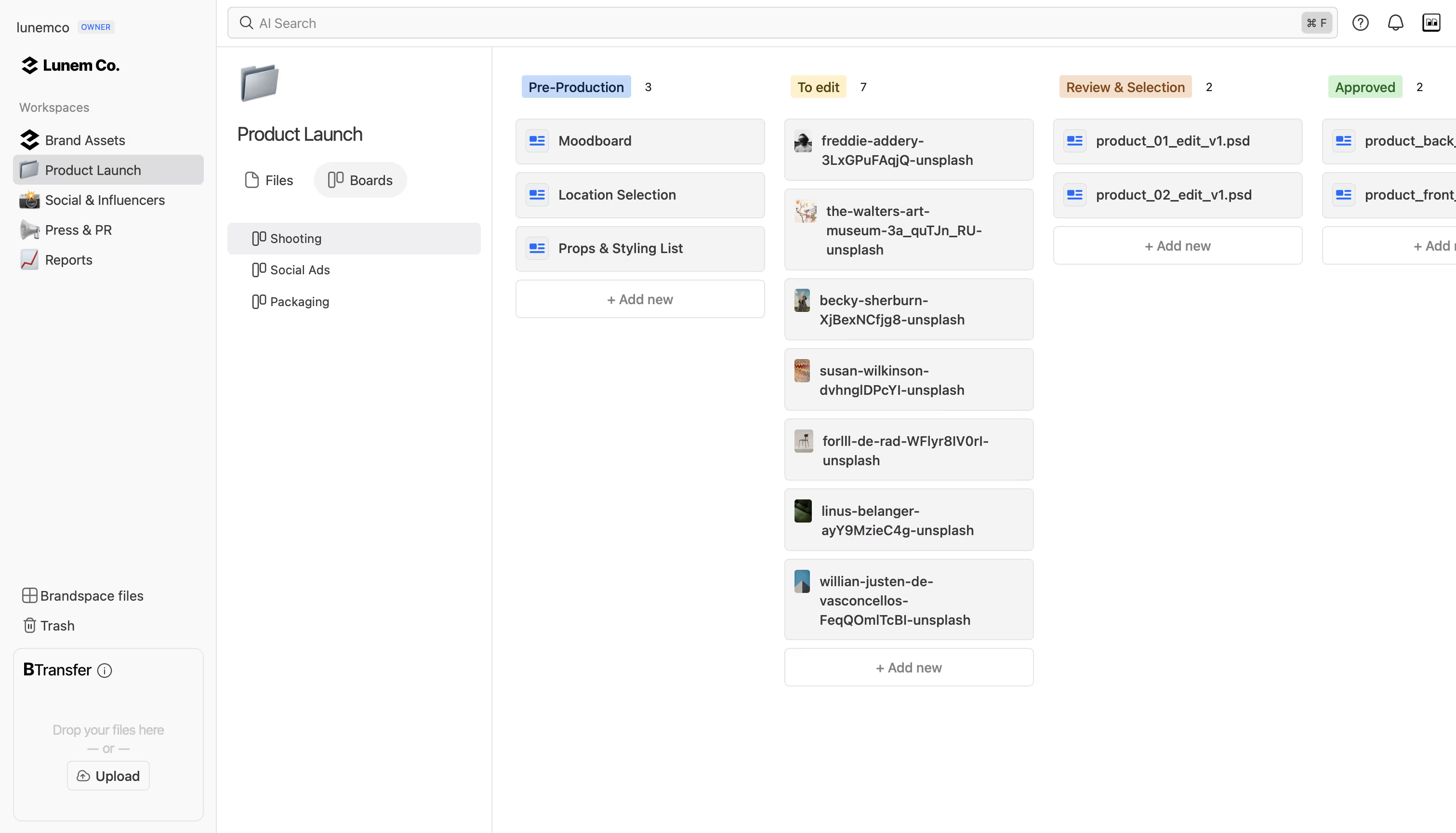
Brault Boards are project boards built directly into your file management library. Each item on a Board is an actual file, not a task that links to a file somewhere else. You define custom properties (status, person, date, checkbox), move files through your stages, and track your creative workflow without ever leaving the place where your files live.
Boards launched as Kanban in April 2026. Since August 2026 the same board also renders as a gallery and as a table, so you can look at the work, move it forward, or fill in its facts without changing tools. The full breakdown is in Three ways to see a board: gallery, kanban, and table.
The problem: your files live in one tool, your project management in another
Most creative teams manage files in one place (Google Drive, Dropbox, a DAM) and track project progress in another (Trello, Asana, Monday). The result:
- Duplicate information: You create a card in Trello called "Homepage banner v3" that links to a file in Google Drive called "homepage_banner_v3_final_FINAL.psd". When the file name changes, the card is stale.
- Lost context: A teammate asks "what's the status of the Q2 campaign assets?" You check Asana. Then you check Drive. Then Slack. The answer lives across three tools.
- Manual syncing: Every status change requires updating both the file system and the project management tool. Nobody does this consistently.
Boards solve this by making the file itself the unit of work. The file IS the card. When you move it between columns, you're changing the status of the actual asset, not a reference to it.
How do Brault Boards work?
Kanban view over your files
Every Board displays files as cards in a Kanban layout. Columns represent the values of whichever property you're grouping by: typically status (Draft, In Review, Approved, Delivered), but also person, date, or checkbox.
Drag a file from "Draft" to "In Review" and that file's status property updates instantly. No separate project management tool needed.
Custom properties on files
Each Board defines its own set of properties. These attach directly to the files in that Board:
- Status: Define your own workflow stages (Draft → In Review → Approved → Delivered, or whatever fits your process)
- Person: Assign an owner or reviewer to each file
- Date: Set deadlines, delivery dates, or shoot dates
- Checkbox: Simple yes/no flags (approved, archived, priority)
You decide which properties matter for your workflow. A production team might use Status + Person + Date. A freelancer might use just Status.
Three views over the same board
The same Board renders three ways, and the choice is remembered per board for each person:
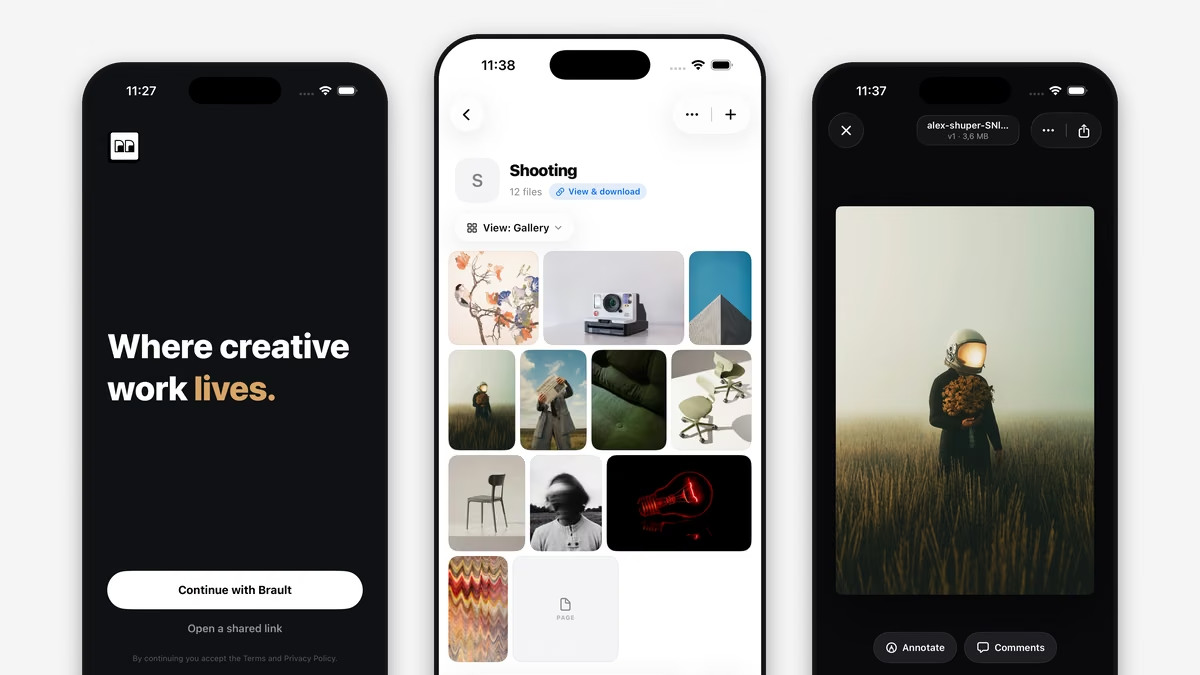
- Gallery: a mosaic of large thumbnails at their natural aspect ratio, with marquee selection and hover scrub on video. This is the default the first time you open a board, and the right surface for picking selects and comparing versions.
- Kanban: columns per property value, drag a file between them to change its status. The right surface once work is in review.
- Table: one column per board property, with keyboard navigation, range selection, drag-fill, and copy and paste to and from Excel and Google Sheets. The right surface for planning and delivery.
Filters and search behave identically in all three. Group by appears only in Kanban, since grouping into columns is a Kanban concept.
Group by any property
Switch your Kanban view instantly: group by status to see workflow progress, group by person to see workload distribution, group by date to see what's due this week. Same Board, different perspectives.
Search within Boards
As Boards grow, filter files by name, keywords, or tags. Results stay in their columns so you see filtered files in context of their status.
Use cases
Campaign asset tracking
Track every asset for a marketing campaign from creation to delivery. One Board per campaign, status columns for each stage. When a designer finishes a banner, they drag it to "Ready for Review." The marketing lead drags it to "Approved." No Slack messages needed. The Board is the source of truth.
Photo and video production
Tag files by shoot status, editor assignment, and delivery date. A photographer uploads raw files → they appear in "Uploaded." The editor drags them to "Editing." When done, they move to "Ready for Delivery." The producer sees the entire pipeline at a glance.
Brand asset governance
Track which brand assets are current, under review, or expired. A Board with Status properties like "Active," "Needs Update," and "Archived" gives the brand team instant visibility into the state of their asset library.
Real-time collaboration
Boards sync in real-time across all users via WebSockets. When a teammate moves a file to a different column, you see it instantly. No refresh needed. Multiple people can work on the same Board simultaneously.
Changes are optimistic: the UI updates immediately when you drag a file, and syncs with the server in the background. If something goes wrong, it rolls back automatically.
Published Boards
Share a read-only view of any Board externally by publishing it. The published Board carries your brand identity (logo, colors, and theme) so clients and partners see a professional, branded Kanban view of your project.
Published Boards are accessible at a public URL without requiring the viewer to create an account.
How do Boards fit into creative file management?
Boards are part of the creative asset management approach: instead of scattering your workflow across separate storage, transfer, review, and project management tools, everything lives in one library.
Combined with AI-powered search, Brault Transfer for file delivery, and white-label branding, Boards complete the picture: your files, your workflow, your brand, one platform.
Key Takeaways
- Boards bring project management directly into your file library. Each card is an actual file, not a task linking to a file elsewhere
- The same Board renders in three views: gallery for looking at the work, kanban for moving it forward, table for filling in the facts
- Custom properties (status, person, date, checkbox) attach to files themselves, eliminating duplicate tracking across tools
- Group by any property to see workflow progress, workload distribution, or deadlines. Same Board, different views
- Real-time multi-user sync means teams see changes instantly without refreshing
- Published Boards let you share branded, read-only project views with clients and partners
- Boards are included in all Brault plans at no extra cost. Start using them for free
Related reading
- What is creative asset management?
- What is a DAM? Costs, features, and modern alternatives
- Introducing Search by Image: find files by sight
- Three ways to see a board: gallery, kanban, and table
- Creative project management: a practical guide for creative teams
- Best creative project management software in 2026