Sending a long video from a phone fails because every messaging app has a size cap and most of them compress video before it leaves: WhatsApp sends videos at 100 MB and 720p by default, Messenger stops at 100 MB, Google Messages carries up to 100 MB over RCS and a few megabytes over MMS, and a two-minute 1080p clip already weighs 200 MB or more. The fix is the same on every platform: send the video as a link or as a document, so the file travels once at full quality and the app limit never applies. Apple's own guidance for iPhone is AirDrop nearby, an iCloud link in Messages, or Mail Drop by email up to 5 GB.
This guide gives the limits for each app with their sources, then the steps for iPhone, Android, WhatsApp, Messenger and Telegram, and the apps that send a long video to anyone on any device. For the general method by file size and channel, see how to send large video files; for email specifically, how to send large files via email.
Why is a long video too big to send?
Phone video is large. At 1080p and 30 frames per second an iPhone or Android records roughly 60 to 130 MB a minute; at 4K, 170 to 400 MB a minute. The messaging caps are far below that:
| App or channel | Limit | What happens above it |
|---|---|---|
| SMS/MMS | About 1 MB to 3.5 MB, carrier-dependent | Heavy compression or refusal |
| Google Messages (RCS chat) | 100 MB per file | Falls back to MMS if the recipient has no RCS |
| iMessage (Apple to Apple) | About 100 MB (not published by Apple) | Messages offers an iCloud link instead |
| WhatsApp, sent as video | 100 MB and 720p by default; HD option | Compressed on send |
| WhatsApp, sent as document | 2 GB | Refused above 2 GB, no compression |
| Messenger | 100 MB since April 2025 (was 25 MB) | Refused |
| Telegram | 2 GB per file, 4 GB with Premium | Refused |
| Mail Drop (iPhone, Mac) | 5 GB per message, 30 days | Refused |
Sources, checked 2026-09-14: WhatsApp Help Center "How to send media, contacts, or location" (100 MB and 720p default for video, 2 GB for documents); Messenger's April 2025 announcement of the 100 MB limit; Google Messages help threads on the 100 MB RCS Universal Profile limit; Telegram FAQ (2 GB, 4 GB with Premium); Apple's "Share long videos on iPhone" and Mail Drop pages. Apple does not publish an iMessage attachment size; 100 MB is the widely reported figure.
Two things follow. First, "long" is really "large": a 45-second 4K clip can be bigger than a 5-minute 720p one. Second, when an app does accept the video, it usually recompresses it, which is why a sharp clip arrives blurry. Both problems disappear when the file travels as a link.
How do you send a long video from an iPhone?
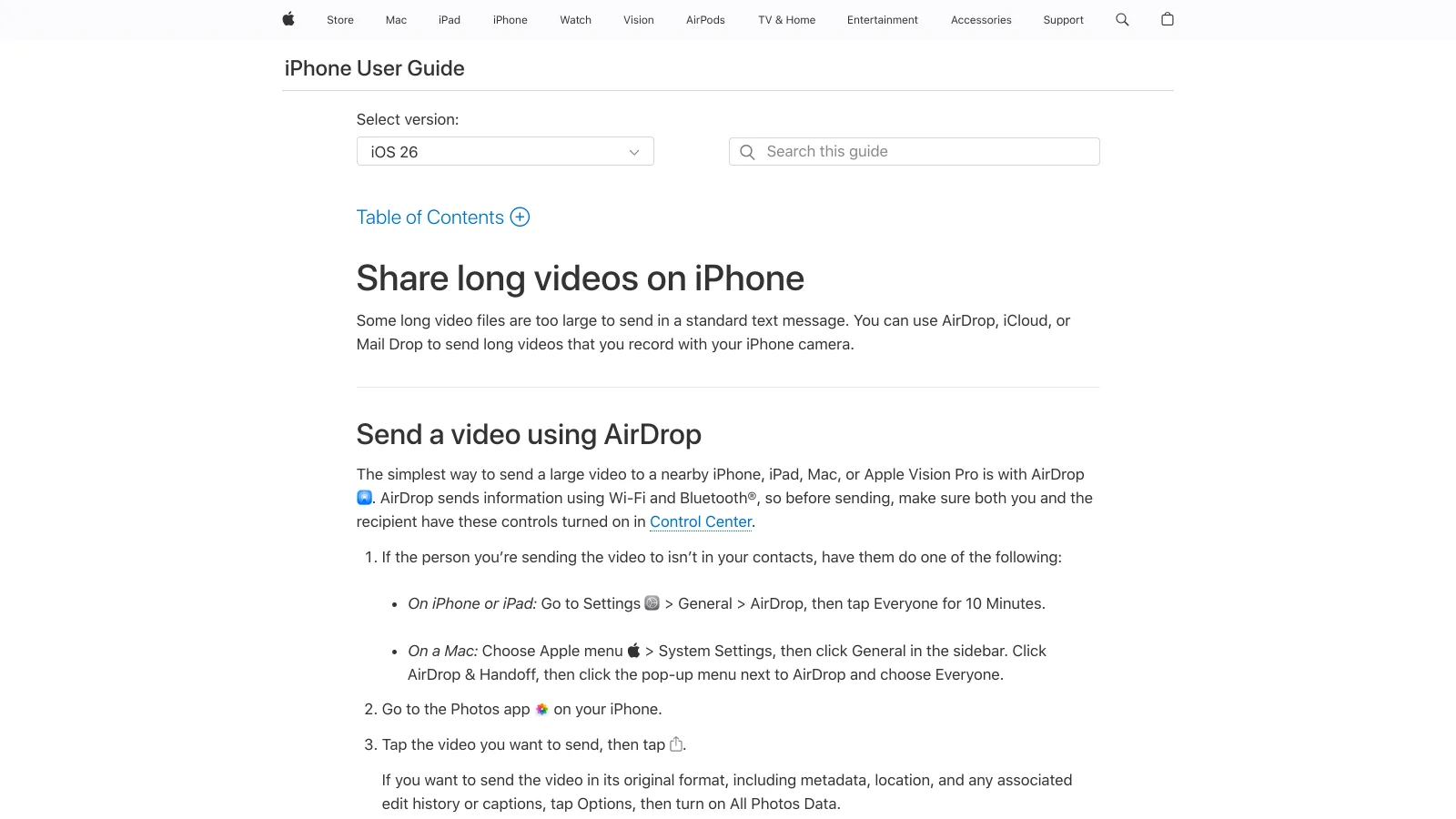
Apple's guide lists three routes, and each fits a different situation.
- AirDrop, when the person is next to you. Open the video in Photos, tap Share, then AirDrop, and pick the device. It travels over Wi-Fi and Bluetooth at full quality with no size limit that matters; the recipient accepts and it lands in their Photos. If they are not in your contacts, they set AirDrop to Everyone for 10 Minutes in Settings.
- An iCloud link in Messages, when they are not. Share the video in Messages; when it is too large to send as an attachment, Messages offers to send an iCloud link instead. The recipient, on any device, opens the link and downloads the original. The link stays valid for 30 days.
- Mail Drop, by email. Attach the video in Mail. Above the mail server's limit, Mail offers Mail Drop, which uploads the file to iCloud and sends a link. Apple's cap is 5 GB per message, recipients have 30 days to download, and the attachments do not count against your iCloud storage.
For a video above 5 GB, or one that should stay available longer than 30 days, use a transfer service. With Brault for iPhone, the Transfers tab sends the video from your photo library or from a Brault library as a branded transfer link, up to 2 GB per transfer on Free and 250 GB on Growth; the other apps below work from the Files app or the browser.
How do you send a long video from Android?
Android has the same three shapes: nearby, link, email.
- Quick Share nearby. Select the video in Google Photos or Files, tap Share, then Quick Share (formerly Nearby Share) and pick the device. Full quality, no size cap that matters.
- A Google Photos or Drive link. In Google Photos, tap Share, then Create link, and paste it into any chat. The recipient streams or downloads the original. In Google Drive the same Share button gives a link with view or download permission; both count against the 15 GB free Google storage.
- RCS in Google Messages, for short clips only. If both phones have RCS chat on, Messages sends files up to 100 MB; otherwise it falls back to MMS and a few megabytes. Long videos go as a link even on RCS.
How do you send a long video on WhatsApp?
WhatsApp has two doors and only one of them keeps the quality. Sent as a video (the Gallery option), WhatsApp compresses to 100 MB and 720p by default; the HD option keeps more resolution but still recompresses. Sent as a document (Attach, then Document, then browse to the video), WhatsApp accepts files up to 2 GB and sends the file as it is, without compression. The recipient downloads it and opens it with their player instead of seeing it inline.
For a video above 2 GB, send a link. WhatsApp turns any pasted URL into a preview, so a transfer link works the same as a shared photo.
How do you send a long video on Messenger or Telegram?
Messenger raised its file limit from 25 MB to 100 MB in April 2025, which covers about a minute of 1080p. Above that, the only route is a link pasted into the chat.
Telegram is the most generous messaging app: 2 GB per file on the free plan and 4 GB with Telegram Premium, with a "send as file" option that skips compression, and files stay in the cloud chat indefinitely. For most long phone videos it is enough; for a full event or a 4K project, it is still a link.
Which apps send long videos to anyone?
When the recipient is on another platform, or the video is above the messaging caps, a transfer link is the universal answer: you upload once, they download from a page in their browser, no app required. These three cover the common cases; the full field is in best WeTransfer alternatives.

- Best forA one-off send with no account for the recipient
- PricingFree; Ultimate $23 a month for transfers up to 1 TB (US list, verified 2026-09-14)
- Free plan3 GB per transfer, 10 transfers or 3 GB per 30 days, 3-day expiry
- Watch outThe free monthly cap is used up by one large video; ads on free downloads

- Best forPeople whose videos already live in Dropbox
- PricingPlus $9.99 a month with 2 TB and 50 GB transfers (US list, verified 2026-09-14)
- Free plan2 GB of storage, Transfer up to 2 GB
- Watch outPasswords on transfer links start on the team plans

- Best forDelivering the original file with your name on the download page
- Pricing$0 Free, $4 Lite, $12 Pro, $70 Growth a month, billed annually
- Free plan5 transfers a month of up to 2 GB, branded page, no ads
- Watch outBrault for iPhone needs iOS 26; on Android, transfer from the phone's browser
Brault Transfer works from Brault for iPhone or from any phone browser: in the app's Transfers tab, or at brault.app, choose the video from Photos or Files, add the recipient's email or copy the link, and send. Free covers 5 transfers a month of up to 2 GB; Lite ($4 a month billed annually) 20 of up to 50 GB; Pro ($12) unlimited 50 GB transfers plus 20 of up to 100 GB; Growth ($70) unlimited transfers of up to 250 GB. The file arrives exactly as uploaded, on a page with your logo, with an expiry you choose and a password if you want one, and it stays searchable in your library afterwards. For the comparison of the two services most people reach for first, see WeTransfer vs Dropbox.
How do you send a long video without losing quality?
Quality is lost in two places: the app's compression on send, and the recipient's app on receive. Three rules keep the original intact.
- Never send as a media attachment in a messaging app when the video matters. WhatsApp as video, Messenger, MMS and iMessage to Android all recompress. Use the document option or a link.
- Do not compress before sending unless you have to. A phone video is already H.264 or HEVC; zipping it saves almost nothing, and re-encoding at a lower bitrate is exactly the quality loss you are trying to avoid. If the recipient only needs to watch, not edit, a 1080p re-encode is acceptable; if they need the footage, send the original as a link. The video compression guide covers the settings when you must.
- Check what the recipient will open it with. A link to the original file works everywhere; an iCloud link needs no Apple account to download, a Google Photos link none from Google. A transfer link opens in any browser.
Key takeaways
- Messaging apps cap videos low and compress them: 100 MB on WhatsApp (as video), Messenger and RCS; a few megabytes on MMS; about 100 MB on iMessage before it offers an iCloud link.
- Send the video as a document or a link and the cap disappears: WhatsApp documents up to 2 GB, Telegram 2 GB (4 GB Premium), Mail Drop 5 GB, iCloud and Google Photos links, or a transfer service.
- On iPhone, Apple's three routes are AirDrop nearby, an iCloud link in Messages, and Mail Drop by email. On Android, Quick Share nearby and a Google Photos or Drive link.
- Quality is lost by the app's compression, not by the length of the video. The original as a link arrives as the original.
- Brault Transfer sends the exact file from Brault for iPhone or from any phone browser, 2 GB free and up to 250 GB on Growth, on a branded page with an expiry and a password.