To send photos from an iPhone to a computer, use AirDrop or a USB cable with the Photos app on a Mac, a USB cable with the Apple Devices app and the Windows Photos app on a PC, or a cloud route (iCloud Photos, Google Photos or an upload app such as Brault for iPhone) when there is no cable at hand. All of these keep the full-resolution original. Email, Messages to a non-Apple phone and WhatsApp in Standard quality do not: they resize or compress the image on the way.
This guide compares the eight methods that work in 2026, with the format each one delivers (HEIC or JPEG), its size limit, and whether it needs a cable or works on Windows. It is written for people who shoot a lot on iPhone, such as photographers, creators and small teams, where losing a few megapixels or a ProRAW file matters. For video, the companion guide is how to send large video from iPhone.
TL;DR
- Mac, a few photos: AirDrop. Mac, hundreds: USB cable plus Photos or Image Capture.
- Windows PC: USB cable, the Apple Devices app and the Windows Photos app.
- No cable, any computer: iCloud Photos, Google Photos or Brault for iPhone, then open in the browser.
- Avoid email (25 MB per message) and WhatsApp in Standard quality for anything you will edit or print.
- HEIC arrives as JPEG over USB unless you set Settings, Apps, Photos to Keep Originals.
Which way to send photos from iPhone to computer keeps quality?
AirDrop, a USB import, iCloud Photos, Google Photos in Original quality and Brault for iPhone all deliver the photo at full resolution. The table compares the eight methods on what matters when you shoot a lot.
| Method | Full quality kept | HEIC handling | Size limit | Needs cable | Works on Windows |
|---|---|---|---|---|---|
| AirDrop | Yes | Keeps HEIC | None in practice | No | No |
| USB + Photos or Image Capture (Mac) | Yes | Converts to JPEG unless Keep Originals | None | Yes | No |
| USB + Apple Devices + Photos (Windows) | Yes | Converts to JPEG unless Keep Originals | None | Yes | Yes |
| iCloud Photos / iCloud for Windows | Yes | Keeps HEIC; download as JPEG optional | Your iCloud storage | No | Yes |
| Google Photos or Google Drive | Yes in Original quality | Keeps HEIC | Your Google storage | No | Yes |
| Only if you pick Actual Size | Keeps HEIC or converts, by app | 20 to 25 MB per message | No | Yes | |
| No in Standard; HD is closer but still compressed | Converts to JPEG | 16 MB for media | No | Yes | |
| Brault for iPhone | Yes | Keeps HEIC, ProRAW and ProRes | Your plan's storage | No | Yes, in the browser |
Sources: Apple's "Transfer photos and videos from your iPhone or iPad to your Mac or PC" and "Using HEIF or HEVC media on Apple devices" pages, WhatsApp Help Center, Google and Microsoft attachment limits. Verified 2026-10-14.
How do you send photos from iPhone to Mac?
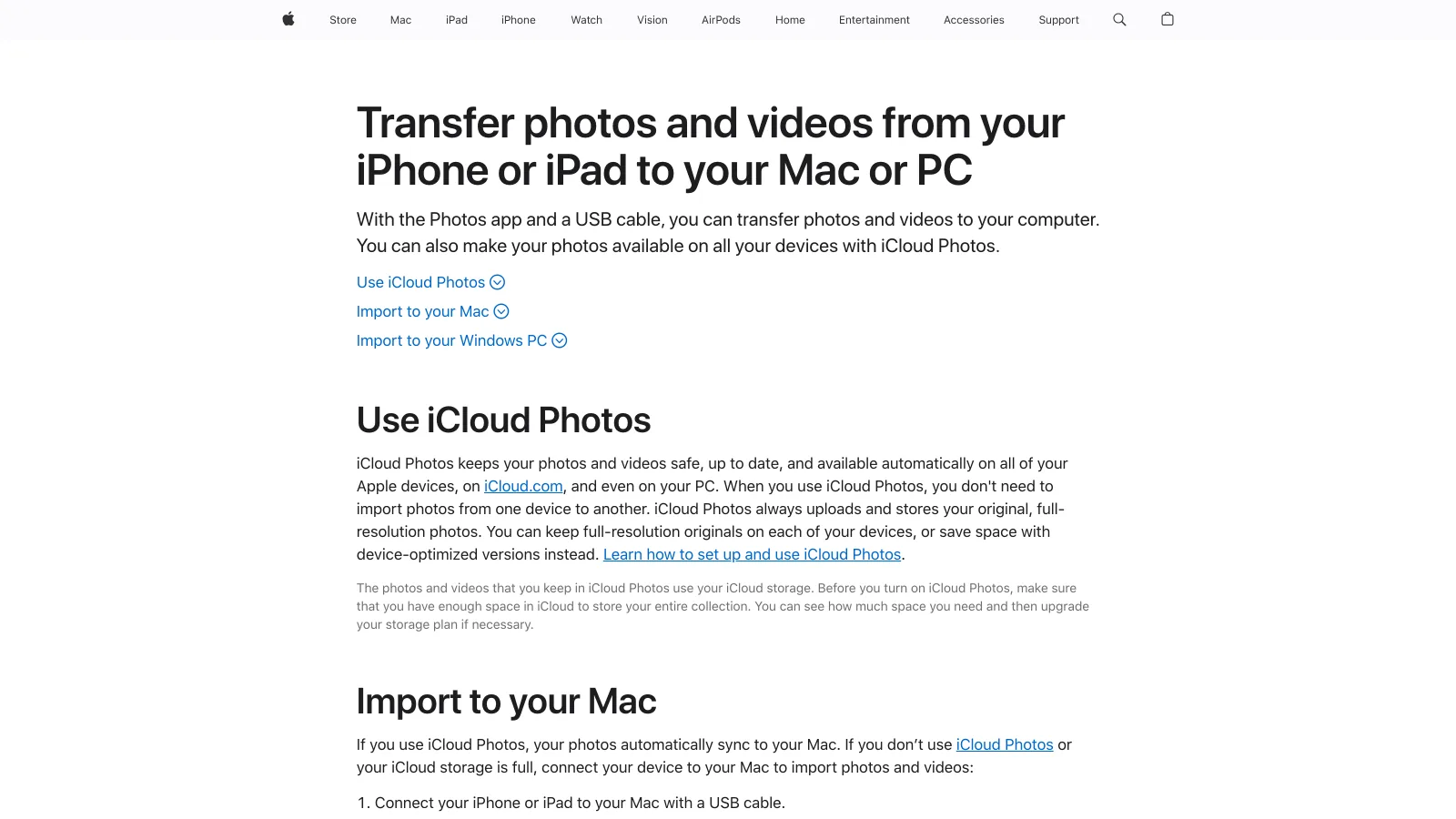
AirDrop and a USB import are the two native routes from iPhone to Mac, and both move the original file.
AirDrop, for a few photos
- On the Mac, open Finder, choose AirDrop in the sidebar and set "Allow me to be discovered by" to Contacts Only or Everyone.
- On the iPhone, open Photos, tap Select and pick the photos.
- Tap Share, then AirDrop, then the Mac.
- The photos land in the Mac's Downloads folder.
AirDrop has no size cap that matters and sends HEIC as HEIC. It slows down past a few hundred photos, and it needs both devices nearby with Wi-Fi and Bluetooth on.
USB cable with Photos or Image Capture, for a full import
- Connect the iPhone to the Mac with a USB-C or Lightning cable and unlock the phone. Tap Trust if asked.
- Open the Photos app on the Mac and select the iPhone in the sidebar under Devices.
- Pick the photos or click Import All New Items.
Image Capture does the same job without adding the photos to your Photos library: choose a destination folder and click Download All. Photographers who keep files in their own folder structure usually prefer it.
How do you send photos from iPhone to PC?
A USB cable with Apple's Apple Devices app and the Windows Photos app is the native route from iPhone to a Windows PC, and it is the one Apple documents.
- Install the Apple Devices app from the Microsoft Store. It brings the drivers Windows needs to see the iPhone.
- Connect the iPhone by cable, unlock it and tap Trust on the phone.
- Open the Photos app in Windows, choose Import and pick the iPhone.
- Select the photos and choose the destination folder.
You can also open the iPhone in File Explorer under This PC, then Apple iPhone, Internal Storage, DCIM, and copy the folders by hand. This is quick for a one-off, but the folders are split by month and Live Photos arrive as separate image and video files.
Windows 10 and 11 open HEIC files only after you install the HEIF Image Extensions from the Microsoft Store. If you do not want to deal with that, leave the transfer setting on Automatic and the iPhone sends JPEG.
How do you send photos from iPhone to computer without a cable?
Cloud routes upload the photo from the phone and let you open or download it on any computer, Mac or Windows, without a cable.
iCloud Photos
Turn on iCloud Photos in Settings, your name, iCloud, Photos. Every photo uploads at full resolution. On a Mac signed in to the same Apple Account, the Photos app shows them. On Windows, install iCloud for Windows from the Microsoft Store and turn on Photos, or download them from iCloud.com. The limit is your iCloud storage: 5 GB is free, and a photographer's library outgrows it quickly.
Google Photos and Google Drive
Install Google Photos, turn on backup and set the backup quality to Original quality. The files then open in photos.google.com on any computer. Google Drive works the same way for a handful of files: upload from the Files picker, download on the computer. Both count against your Google storage, 15 GB free shared with Gmail.
Email suits two or three photos. Gmail and Outlook.com stop at 25 MB per message, and Mail on iPhone may offer to resize images to Small, Medium or Large; choose Actual Size to keep the original. A dozen 48 MP HEIC photos already exceed the limit. How to send large files via email covers the caps per provider and Mail Drop.
Brault for iPhone
Brault for iPhone uploads photos from the camera roll, the camera or the Files app straight into a library in your Brault brandspace. Nothing is resized: HEIC stays HEIC, ProRAW stays DNG, ProRes stays ProRes. On the computer you open the same library in the browser at brault.app, or in Brault Desktop for Mac, and download the originals or keep working with them there.
- Open Brault for iPhone and go to the library or folder where the photos belong.
- Tap Add, then Photo library, and select the photos.
- The upload runs in the background. On the computer, open the library and the photos are there with their previews.
This route makes sense when the photos are work, not just a copy for yourself: a shoot that a teammate, an editor or a client needs to see. If you want to hand the files to someone outside your brandspace, the same app sends them as a Brault Transfer with a branded download page; the steps are in send a Brault Transfer from your iPhone. Plans are $0 Free, $4 Lite, $12 Pro (2 TB) and $70 Growth a month, billed annually, and transfers go up to 2 GB on Free and 250 GB on Growth. More about the app is in introducing Brault for iPhone.

- Best forYour own photos synced across Apple devices
- Free storage5 GB
- Watch outWindows needs iCloud for Windows; not built for sharing with a team

- Best forMixed iPhone, Android and Windows households
- Free storage15 GB shared with Gmail and Drive
- Watch outCheck that backup quality is set to Original

- Best forWork photos a team or client needs, at full resolution
- Pricing$0 Free, $4 Lite, $12 Pro, $70 Growth a month, billed annually
- Watch outThe iPhone app needs iOS 26; on older iPhones, upload from the browser
HEIC vs JPEG: which format should reach your computer?
HEIC is the iPhone's default photo format since iOS 11, and it stores the same image as a JPEG in roughly half the space, with 10-bit color and support for depth and Live Photo data. JPEG opens everywhere, on every computer and in every app, but it is 8-bit and larger.
The iPhone decides which one the computer receives. Apple's HEIF and HEVC page says that when you import over USB, photos "might be converted to JPEG" by default. To stop that, open Settings, Apps, Photos and, under Transfer to Mac or PC, pick Keep Originals. Automatic converts; Keep Originals sends HEIC.
- Choose Keep Originals if you edit in Lightroom, Capture One, Photoshop or the macOS Photos app, all of which open HEIC.
- Choose Automatic if the computer is an older Windows PC without the HEIF extension, or if the files go straight to a client who will open them in anything.
- To shoot JPEG from the start, set Settings, Camera, Formats to Most Compatible. Apple recommends this for Windows users, at the cost of larger files.
ProRAW is a separate case. ProRAW photos are DNG files of 25 MB to 75 MB each, and they are never converted. They survive AirDrop, USB, iCloud Photos and Brault intact; they do not survive email or WhatsApp in any usable form.
Why are my photos smaller or compressed after sending them?
Photos get smaller when the channel re-encodes them to save data, and three channels on the iPhone do that by default.
Messages. iMessage between Apple devices sends the original unless Low Quality Image Mode is on in Settings, Apps, Messages. Sent as MMS to an Android number, the photo is shrunk to fit carrier limits, often under 1 MB.
WhatsApp. Photos go in Standard quality unless you tap the HD button before sending. HD is sharper but is still a compressed copy, and WhatsApp caps media at 16 MB. To send the real file, attach it as a Document (Attach, Document, Choose Photo or Video); it then arrives untouched.
Email. Mail on iPhone may ask whether to send at Small, Medium, Large or Actual Size when a message is big. Anything except Actual Size downsizes the image.
If you are a photographer sending selects to a retoucher, or a creator handing raw material to an editor, none of these three should be in the chain. A cable, AirDrop or an upload to a library keeps every pixel.
Which method should you use?
A few photos to your own Mac
AirDrop. No cable, no upload, HEIC kept as HEIC.
A full shoot to a Mac or PC
A USB cable with Photos or Image Capture on Mac, or Apple Devices and Windows Photos on a PC. Set Keep Originals first.
Personal photos on every device
iCloud Photos, or Google Photos in Original quality if the household mixes Apple, Android and Windows.
Work photos a team or client needs
Brault for iPhone: upload to the shared library from the phone, open it on any computer in the browser or in Brault Desktop for Mac.
Frequently asked questions
How do I send photos from my iPhone to my computer?
On a Mac, use AirDrop for a few photos or a USB cable with the Photos app or Image Capture for a full import. On a Windows PC, install the Apple Devices app from the Microsoft Store, connect the iPhone by cable and import with the Windows Photos app. Without a cable, iCloud Photos, Google Photos or an app such as Brault for iPhone uploads the originals so you can open them on any computer in the browser.
How do I send photos from iPhone to PC without a cable?
Use a cloud route. iCloud Photos syncs to Windows through iCloud for Windows or opens at iCloud.com, Google Photos and Google Drive upload originals when you choose Original quality, and Brault for iPhone uploads photos to a library you open in any browser on the PC. Email works only for a few photos, because Gmail and Outlook.com stop at 25 MB per message.
How do I send photos from iPhone to Mac?
AirDrop is the fastest: select the photos in Photos, tap Share, AirDrop and pick the Mac. For hundreds of photos, connect the iPhone with a cable and import in the Photos app or Image Capture. iCloud Photos keeps the two in sync automatically if both are signed in to the same Apple Account.
Why are my iPhone photos JPEG on my computer instead of HEIC?
Because the iPhone converts HEIC to JPEG when it sends photos to a computer over USB, unless you turn on Keep Originals in Settings, Apps, Photos. Apple documents this behavior in its HEIF and HEVC support page. Choose Keep Originals if your editing software opens HEIC, and Automatic if the computer cannot.
Why are photos smaller when I send them from my iPhone?
Because the channel compresses them. WhatsApp sends photos in Standard quality unless you tap HD, MMS to a non-Apple phone shrinks images to fit carrier limits, and Mail can offer Small, Medium or Large sizes that reduce the image. AirDrop, a USB import, iCloud Photos and upload apps such as Brault for iPhone keep the original file.
What is the fastest way to transfer thousands of photos from iPhone to computer?
A USB cable. Wireless routes upload every photo to the internet and download it again, while a cable import in Photos on Mac or the Windows Photos app reads the files directly from the phone. For an ongoing workflow where photos should reach a team, uploading to a shared library such as Brault avoids moving them by hand every time.
Key takeaways
- AirDrop and a USB import are the native ways to send photos from iPhone to Mac; on a PC, Apple documents a USB cable with the Apple Devices app and the Windows Photos app.
- Without a cable, iCloud Photos, Google Photos in Original quality and Brault for iPhone keep full resolution and work on any computer.
- Over USB the iPhone converts HEIC to JPEG unless Settings, Apps, Photos is set to Keep Originals.
- Email (20 to 25 MB per message), MMS and WhatsApp in Standard quality shrink photos; send as a WhatsApp Document to keep the file.
- For work photos, Brault for iPhone uploads HEIC, ProRAW and ProRes untouched to a shared library, on plans from $0 to $70 a month billed annually.
More on moving files: the file transfer and sharing hub and how to send large video from iPhone.
Shooting for a team or a client every week? Get Brault for iPhone and upload straight from the camera roll to the library they already use.
External references: Apple, transfer photos and videos from iPhone to Mac or PC, Apple, using HEIF or HEVC media, WhatsApp Help Center, how to send media.