You cannot attach a large file to an email. Gmail, Outlook.com and Yahoo Mail all stop at 25 MB per message, and because email encodes attachments as text, the largest file that attaches reliably is closer to 18 MB. Sending a large file "by email" means sending a link in the email, and every major provider already does that for you when you cross the cap.
TL;DR
- The cap is 25 MB on Gmail, Outlook.com and Yahoo Mail, for all attachments in the message combined.
- Encoding adds about a third, so 18 MB is the real ceiling for an attachment.
- Over the cap, Gmail switches to a Google Drive link, Outlook to OneDrive (up to 2 GB) and Apple Mail to Mail Drop (up to 5 GB, 30 days).
- The message has to fit the recipient's limit too, and you rarely know what that is.
- Past 5 GB, or when the file goes to a client, a transfer link beats a cloud folder: no account, no access request, and your branding on the page.
What is the maximum file size you can send via email?
Twenty-five megabytes, on every major provider, counting every attachment in the message together. These are the published 2026 limits.
| Provider | Attachment cap | What happens over the cap |
|---|---|---|
| Gmail (personal) | 25 MB per message | Uploads to Google Drive and inserts a link |
| Google Workspace | Set by the administrator, 25 MB by default | Same Drive fallback |
| Outlook.com | 25 MB per message | Offers OneDrive, up to 2 GB, and the link does not count toward the message size |
| Yahoo Mail | 25 MB per message, sending and receiving | Refuses the attachment |
| Apple Mail | 5 GB via Mail Drop | Hosts the file for 30 days, outside your iCloud storage |
Verified 2026-09-12 on each provider's own documentation: Send attachments with your Gmail message, Sending limits in Outlook.com, Yahoo Mail attachment limits and Mail Drop limits. Google Workspace Enterprise Plus accounts can send up to 50 MB since February 2026.
Check your own file against each provider: does my file fit?
Two numbers behind the number matter more than the 25 MB itself.
Two reasons a file under the limit still bounces
- Encoding overhead. Email carries attachments as Base64 text, about 33% larger than the file on disk, and providers measure the encoded size. A 20 MB file travels as roughly 27 MB. Treat 18 MB as the largest file that attaches reliably.
- The recipient's cap. The message has to pass both ends. A 40 MB message that leaves an Enterprise Plus account bounces at any address that accepts 25 MB, and you almost never know which that is.
How do you send a large file in Gmail?
Attach the file as you normally would. When it crosses 25 MB, Gmail uploads it to Google Drive and replaces the attachment with a link, then asks whether to give the recipient access before it sends.
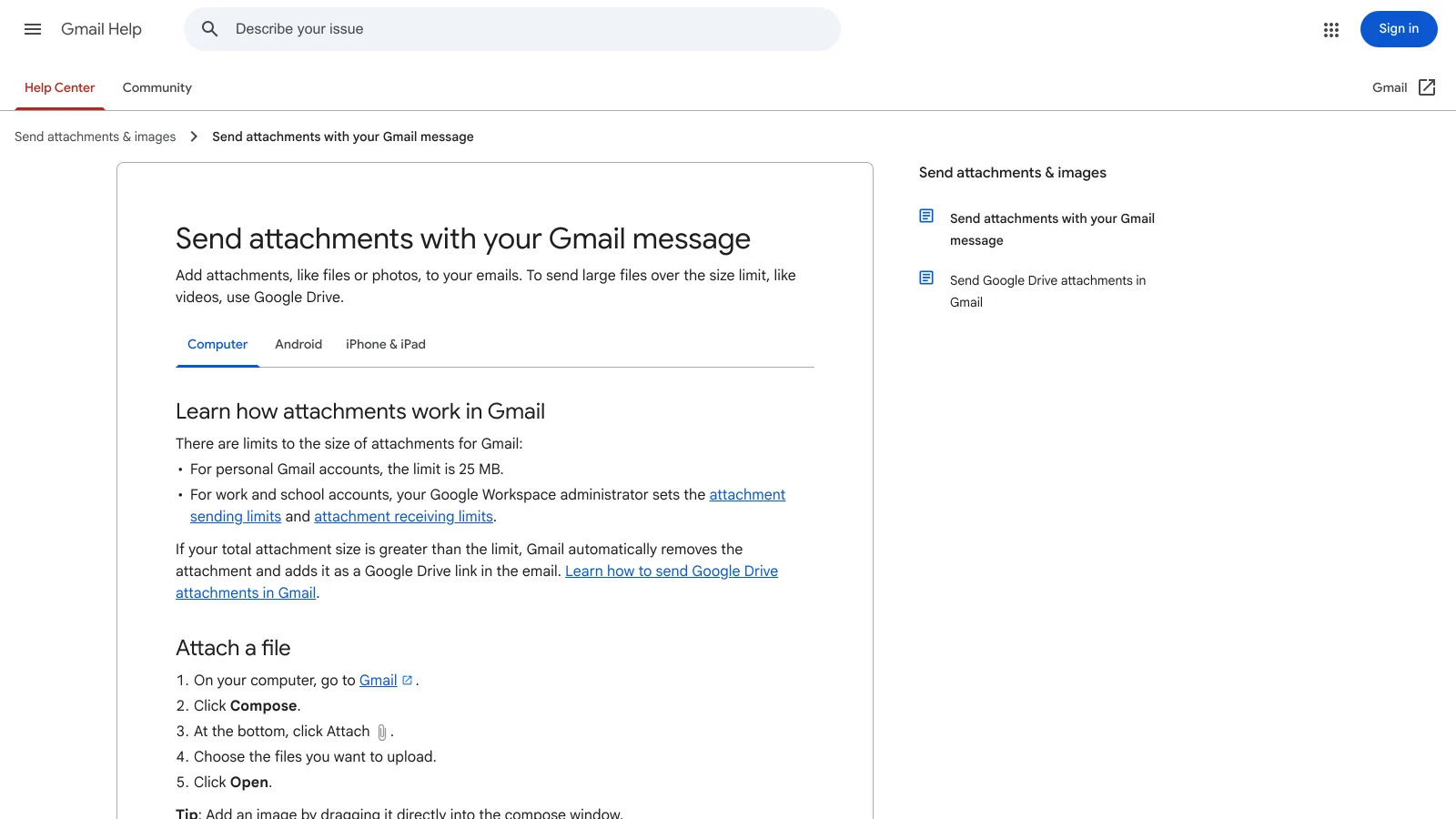
That last prompt is where this method costs you time. If the recipient is outside your organization and you skip it, they receive a link that asks you for permission, and the exchange turns into two more emails. Before sending, set the link to anyone with the link, or expect the access request.
Drive links also stay live until you remove them, which is convenient inside a team and awkward with a client: the file sits in your Drive, associated with your account, with no expiry.
The cap itself, and how it differs on Google Workspace, is covered in the help center: What is the Gmail attachment size limit?.
How do you send a large file in Outlook?
Outlook.com caps attachments at 25 MB and offers OneDrive for anything larger, up to 2 GB. The OneDrive link does not count toward the message size at all, so a 1 GB file travels in an email that weighs almost nothing.
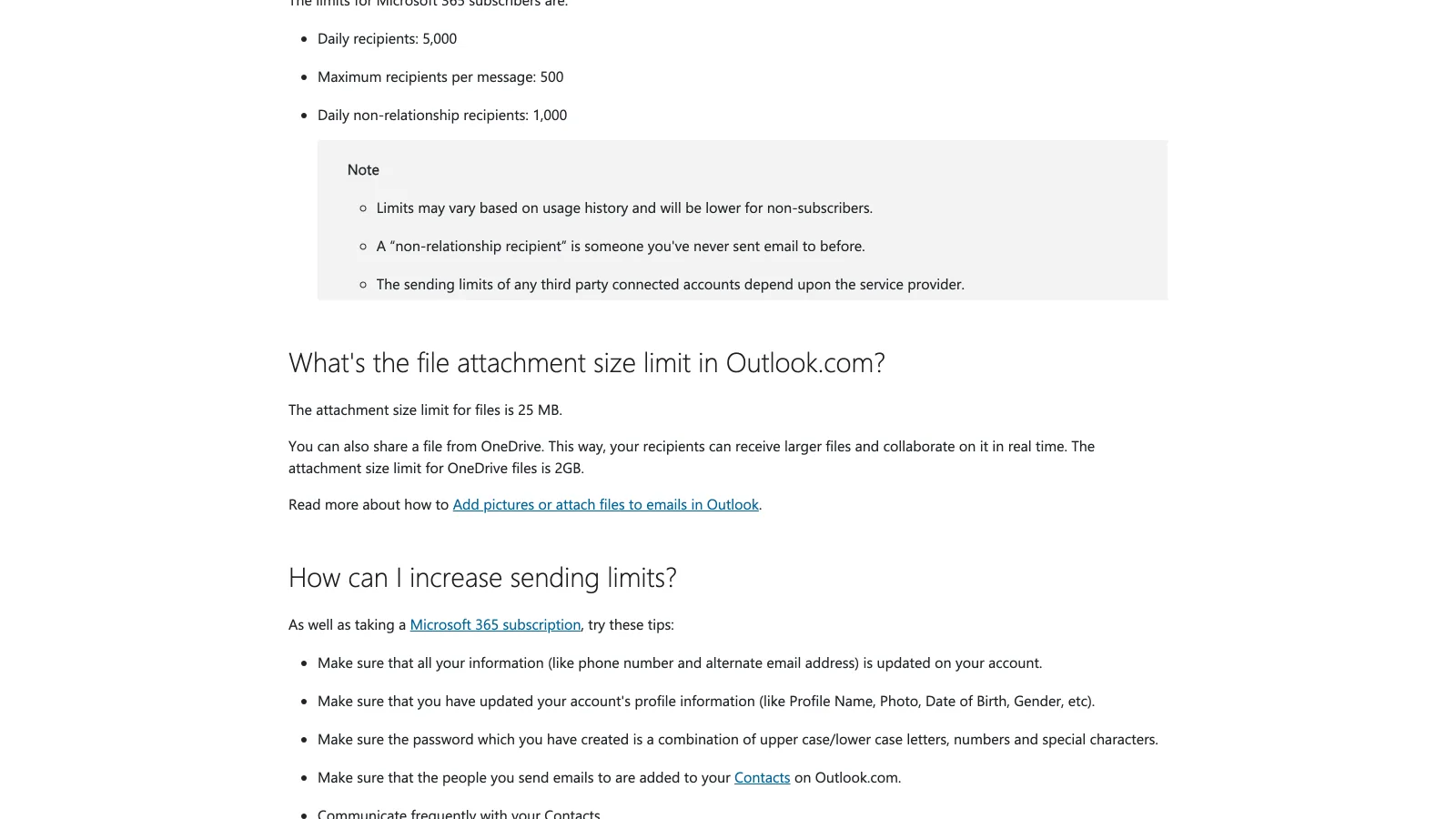
The workflow is the same as Gmail's, and so is the friction: permissions. Outlook asks whether recipients can edit or only view, and a file shared from a work account often inherits tenant rules that block external addresses outright. If your recipient is a client on a personal address, check that setting before you send rather than after they reply that the link does not open.
How do you send a large file from Apple Mail?
Apple Mail uses Mail Drop, and it is the most generous of the built-in options: up to 5 GB for the message and its attachments, held for 30 days, and it does not count against your iCloud storage. There is a 1 TB Mail Drop storage limit across everything you have in flight.
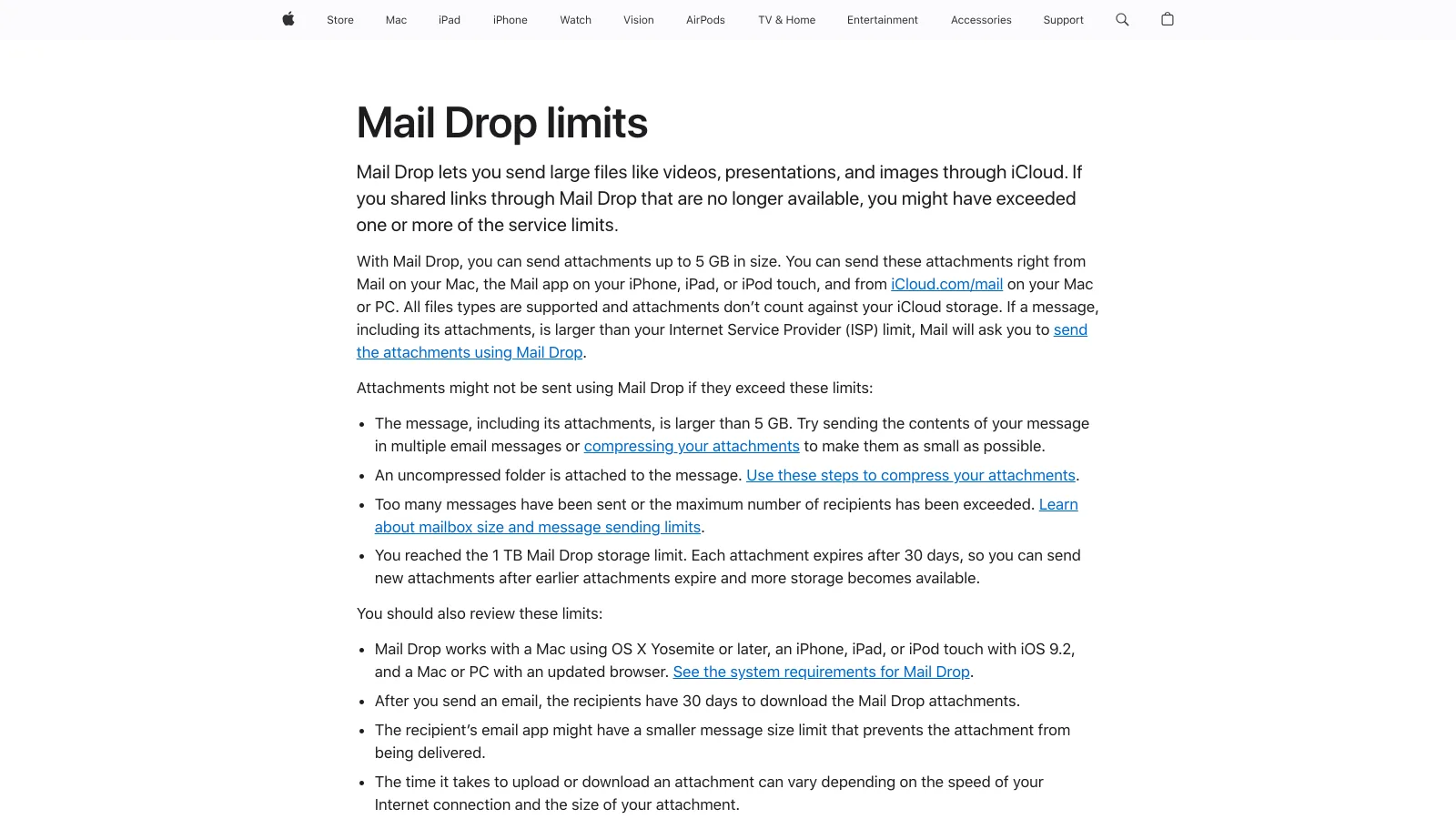
Mail Drop is the best of the three for a one-off large file, with two caveats. The link expires after 30 days, which is either a feature or a problem depending on whether the recipient archives their mail. And it only exists on the sending side: you need to be in Apple Mail, on a Mac, iPhone or iPad, for it to appear.
When should you use a transfer service instead?
The built-in fallbacks solve the size problem and leave two others: permissions, and what the recipient sees. The same trade-off shows up outside email; Slack, for one, caps a file at 1 GB, and the transfer help articles cover each channel's limit.
The built-in link is enough
- The recipient is a colleague on the same email system
- The file is under 2 GB and nobody needs it after a month
- You want the file to stay editable in a shared folder
A transfer link fits better
- The file goes to a client who should not need an account
- It is over 5 GB, which every built-in option refuses
- The download page should carry your branding, not your provider's
A transfer service sends a download page instead of a folder. The recipient clicks and the file downloads, with no account, no sign-in and no access request, and the link carries an expiry you set. For work that leaves your company, that difference is the whole point: a client who has to ask for permission to open your delivery is a client who emails you instead of downloading.
Brault Transfer sends up to 2 GB per transfer on the free plan and up to 250 GB on Growth, with your logo on the download page on every plan including the free one. The full comparison of the methods, including the free services that go past 5 GB, is in how to send large video files and the best WeTransfer alternatives.
Should you compress the file instead?
Sometimes, and it is worth knowing when. Compression is the right answer when the file is close to the line and the quality cost is invisible: a 40 MB presentation, a long PDF, a folder of photos that zips down under 18 MB.
It is the wrong answer for video. Getting a modern video file under 25 MB means destroying it, and the recipient notices. A two-minute 4K clip is around 500 MB; the compression that reaches 18 MB is the compression that makes it unusable for anything but preview. If you are trying to email a video, the honest path is the link, not the encoder. We wrote the settings that do work in how to compress video for email.
Frequently asked questions
What is the maximum file size you can send via email?
25 MB on every major provider: Gmail, Outlook.com and Yahoo Mail all cap a message at 25 MB including every attachment. The practical ceiling is lower, around 18 MB, because email encodes attachments as text and that adds roughly a third to the size. Apple Mail is the exception: Mail Drop carries up to 5 GB, but it sends a link rather than an attachment.
How do I send a file larger than 25 MB by email?
You send a link instead of an attachment, and your provider already does it for you: Gmail uploads the file to Google Drive, Outlook offers OneDrive (up to 2 GB, and the link does not count toward the message size), and Apple Mail uses Mail Drop for up to 5 GB. Past those sizes, or when the file goes to a client outside your company, a transfer service gives you a download page instead of a cloud folder.
Why does my 20 MB attachment fail when the limit is 25 MB?
Email carries attachments as Base64 text, which is about 33% larger than the file on disk, and providers measure the encoded size. A 20 MB file travels as roughly 27 MB and bounces off a 25 MB cap. Treat 18 MB as the largest file that attaches reliably anywhere.
Does the recipient limit matter too?
Yes, and it is the failure people miss. A message has to fit through both caps. If you send 40 MB from a Google Workspace Enterprise Plus account, which can send up to 50 MB, it still bounces at any address that accepts 25 MB. When you do not know the recipient setup, a link removes the question.
Every provider limit in one table: the email attachment size limit, and how to send bigger files.
Key takeaways
- The attachment cap is 25 MB on Gmail, Outlook.com and Yahoo Mail, for the whole message, not per file.
- Encoding adds about a third, so 18 MB is the largest file that attaches reliably.
- Every provider already falls back to a link: Google Drive, OneDrive up to 2 GB, or Mail Drop up to 5 GB for 30 days.
- The message also has to fit the recipient's limit, which you rarely know.
- Past 5 GB, or whenever the file goes to a client, a transfer link beats a cloud folder: no account to open it, an expiry you control, and your branding on the page.