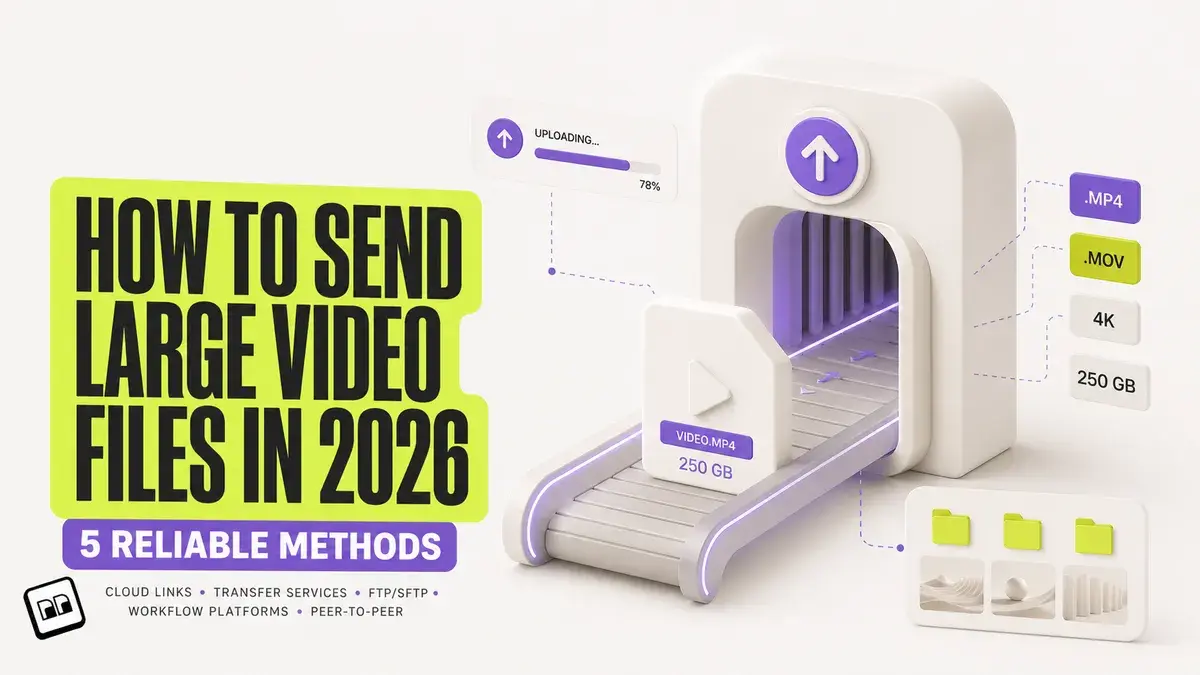
To send a large video file, upload it to a transfer service or cloud drive and send the recipient a download link: email stops at 20 to 25 MB per message, and chat apps recompress video unless you send it as a file. For free, WeTransfer sends 3 GB, Google Drive holds 15 GB, Smash accepts any size with a 7-day link, and Brault Transfer sends 2 GB with your own logo on the download page; from $4 a month Brault sends 50 GB per transfer and on Growth 250 GB. A link moves the file byte for byte, so the recipient gets the same quality you exported.
TL;DR
- Email caps attachments at 20 to 25 MB, so a video of more than a few seconds travels as a link.
- Free and no-account options: WeTransfer 3 GB, Smash any size (priority to 2 GB), Mail Drop 5 GB, Brault Transfer 2 GB with your branding.
- For 50 GB to 250 GB a send: Brault Lite ($4, 50 GB), Pro ($12, plus 100 GB transfers) or Growth ($70, 250 GB unlimited), Dropbox Transfer up to 100 GB.
- Videos lose quality only when an app re-encodes them: send as a document or a link, never as chat media.
- Shrink a video by exporting a smaller version from the editor, not by zipping it (zip saves 1 to 2 %).
How do the ways to send large video files compare?
Nine ways cover every video size from a phone clip to a 250 GB shoot. The table compares them on the six things that decide a video delivery: the largest file it accepts, whether the video keeps its quality, the price, whether the recipient needs an account, and how long the link lives.
| Method | Max size per send | Keeps quality | Free? | Recipient needs account | Link expiry |
|---|---|---|---|---|---|
| Brault Transfer | 2 GB free (5 a month); 50 GB Lite $4; Pro 50 GB unlimited plus 100 GB transfers $12; Growth 250 GB $70 | Yes | Yes, 2 GB | No | 7, 15, 30 or 90 days, set by you on Pro and above |
| WeTransfer | 3 GB free (10 transfers or 3 GB a month) | Yes | Yes, 3 GB | No | 3 days on free |
| Smash | Any size free, priority up to 2 GB | Yes | Yes | No | 7 days on free |
| Google Drive link | 15 GB free storage (5 TB per file on paid storage) | Yes | Yes, 15 GB | Sometimes, on mobile | None until you revoke it |
| Dropbox Transfer | 2 GB Basic, 50 GB Plus, 100 GB Essentials and Business | Yes | Yes, 2 GB | No | 7 days Basic and Plus, 30 days Essentials and Business |
| iCloud Mail Drop | 5 GB per message | Yes | Yes | No | 30 days |
| Email attachment | 20 to 25 MB per message | Yes, if it fits | Yes | No | None |
| WhatsApp (as document) | 2 GB per file | Yes as document, no as media | Yes | WhatsApp account | Stays in the chat |
| Discord | 20 MB free, 50 MB Nitro Basic, 1 GB Nitro | Yes | Yes, 20 MB | Discord account | Stays in the channel |
| Slack | 1 GB per file on every plan | Yes | Yes | Slack workspace | Free plan hides files after 90 days |
Verified 2026-10-16. Dropbox Transfer and Mail Drop checked on help.dropbox.com and support.apple.com on 2026-10-16; email, Gmail, Outlook, Google Drive, Slack, Discord and WhatsApp limits from each provider's support page as cited in our help articles (checked 2026-10-13 and 2026-10-14); WeTransfer and Smash free plans from our WeTransfer free limit guide and Smash review; Brault prices billed annually ($5, $15 and $85 month to month).
Check your own file against every limit above: does my file fit?
Read the table by size first: under 25 MB, attach it; under 3 GB, any free transfer works; over 50 GB, the options narrow to paid transfer plans or Smash's queued free tier. The limits by app are in our help articles: email, Gmail, Outlook, Google Drive, Slack, Discord and WhatsApp.
How do you send a large video file?
You send a large video file in four steps: check its size, pick a method whose cap is larger, upload once from a stable connection, and send the link.
1Check the file size
On a Mac, select the video and press Command + I. On Windows, right-click and choose Properties. On iPhone, open the video in Photos and swipe up. The size decides everything else, and it depends on the export more than on the length:
- One minute of 4K from a phone: 300 to 500 MB.
- Twenty minutes of 1080p at 8 to 12 Mbps: 1.2 to 1.8 GB.
- Twenty minutes of 4K at 50 Mbps: about 7.5 GB.
- A 60-second commercial in ProRes 422 HQ: 5 to 15 GB.
- A half-day shoot of raw 4K from several cameras: 100 to 500 GB.
2Pick the method by size
Find the first row in the comparison table whose cap clears the file. If the recipient is a client, add two filters: no account needed to download, and a page that does not push a third-party brand at them.
3Upload once, from a stable connection
Upload time is set by your upload speed: 50 GB takes about 70 minutes on a 100 Mbps upload and about 7 minutes on 1 Gbps fiber. Four habits stop a long upload from failing at 90 %:
- Use a wired connection or strong Wi-Fi, not a phone hotspot.
- Use a desktop app for anything over 10 GB. Drive for desktop and Brault Desktop for Mac resume after a drop; a browser tab that sleeps may start over.
- Keep the computer awake until the upload shows as complete.
- Do not upload twice. If the video already sits in your library, send it from there.
4Send the link and test it
Paste the link into an email, a chat or a text. Open it yourself in a private window before the recipient does: a link that asks for a sign-in or shows "access denied" is easier to fix before anyone else sees it.
How do you share large video files with someone?
You share a large video file with someone by giving them a link they can open in a browser, without an account and without asking you for access. Sharing differs from sending in one way: the person may want to watch, comment or come back to the video, not only download it once.
Three ways, by what the person does with the video:
- They only need the file. A transfer link (WeTransfer, Smash, Mail Drop, Brault Transfer) is the shortest path. The link expires, which is a feature: the file does not sit on a public URL for years.
- They need to keep coming back to it. A shared folder in Google Drive, Dropbox or OneDrive stays put. Set it to "anyone with the link can view", or the recipient sees an access request. On a phone, Drive and Dropbox links often open the app or ask for a sign-in, which is where most "I can't open it" replies come from.
- They need to give feedback on it. Send a review link instead of a download. In Brault, the person opens the video in the browser and leaves comments pinned to the exact frame, with no account and no download of a 10 GB file to say "trim two seconds here".
For a nearby person, the fastest share needs no internet at all: AirDrop between Apple devices and Quick Share between Android phones and Windows PCs move a video at local network speed, with no size limit and no quality loss.
What is the best way to send large video files?
The best way to send large video files is a transfer link that keeps the original, opens without an account, and expires on a date you choose. Which service is best depends on size and on who receives it, and the honest answer is that a free tool covers most one-off sends.
| If you send | Best free option | Best paid option |
|---|---|---|
| Under 2 GB, once | WeTransfer Free (3 GB) or Brault Transfer Free (2 GB, your branding) | Not needed |
| 2 to 15 GB, once | Google Drive link, Smash Free | Brault Lite, $4 a month |
| 15 to 50 GB | Smash Free (queued over 2 GB) | Brault Lite ($4, 50 GB), Dropbox Transfer on Plus |
| 50 to 100 GB | None reliable | Brault Pro ($12, 100 GB transfers), Dropbox Transfer on Essentials or Business |
| 100 to 250 GB | None | Brault Growth ($70, unlimited 250 GB transfers) |
| Every week, to clients | None with your branding except Brault Free under 2 GB | Brault Lite or Pro |
Verified 2026-10-16. Prices in USD, billed annually.
WeTransfer's free plan is detailed in WeTransfer free limit, Smash's queue and its paid plan in the Smash review, and seven services side by side in best WeTransfer alternatives.
When does Brault Transfer fit?
Brault Transfer fits when the video goes to a client or comes back for review, because the delivery happens inside the same place where the file is stored and commented on. What it does, plan by plan:
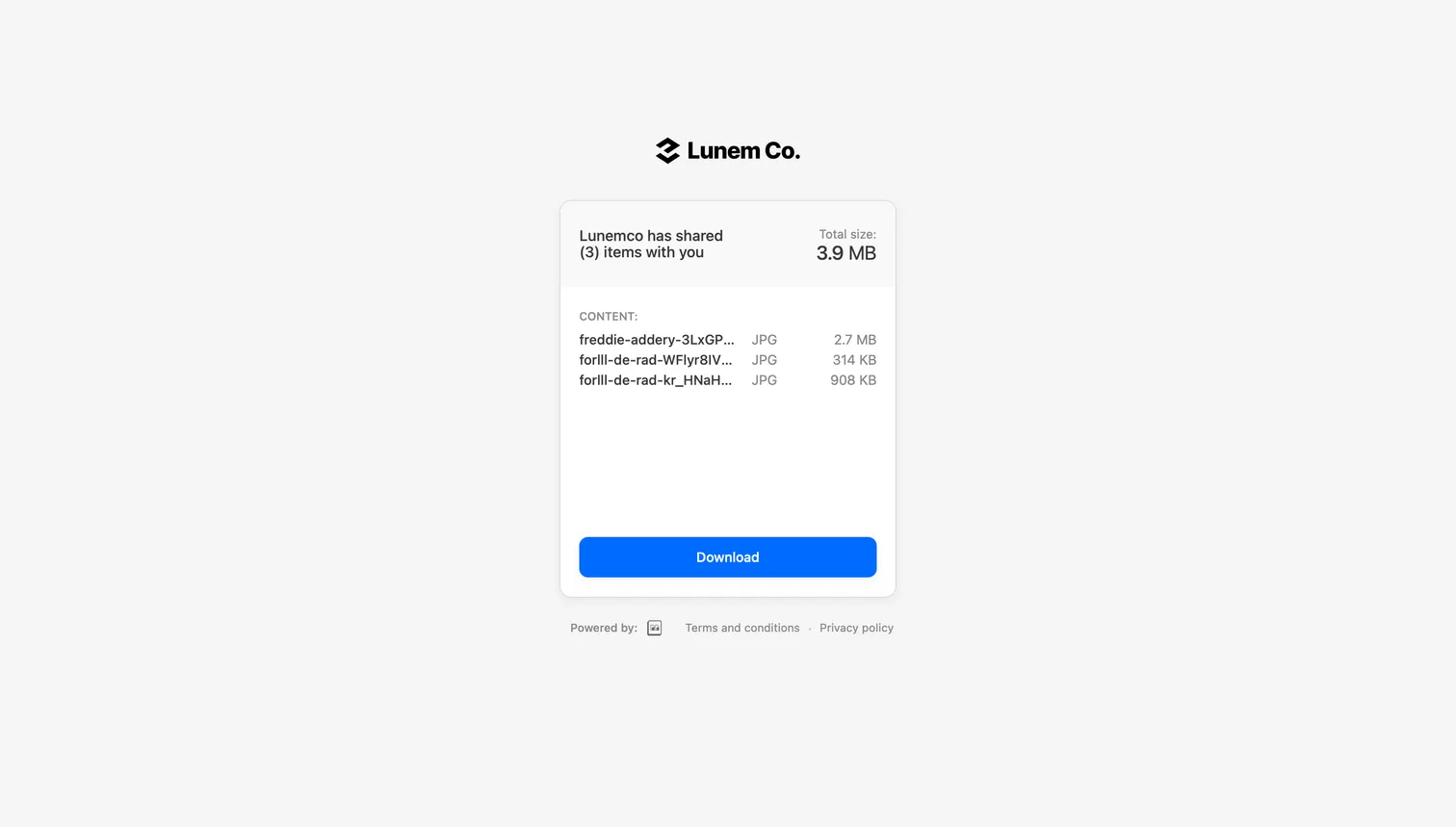
- Branded download page on every plan, free included. Your logo, colors and custom domain; the recipient sees your studio, not another company's.
- No account for the recipient. They click, optionally enter the password, and download.
- Review comments on the video. The same file can be streamed for review, with comments pinned to a timestamp, before you send the master.
- Password on Lite and above.
- Expiry of 7, 15, 30 or 90 days on Pro and above.
- Caps by plan: Free 2 GB (5 transfers a month), Lite 50 GB (20 a month) at $4, Pro unlimited 50 GB plus 100 GB transfers at $12, Growth unlimited 250 GB at $70, all billed annually ($5, $15 and $85 month to month). Free and Lite are single-user, Pro includes up to 3 users and Growth includes 4.
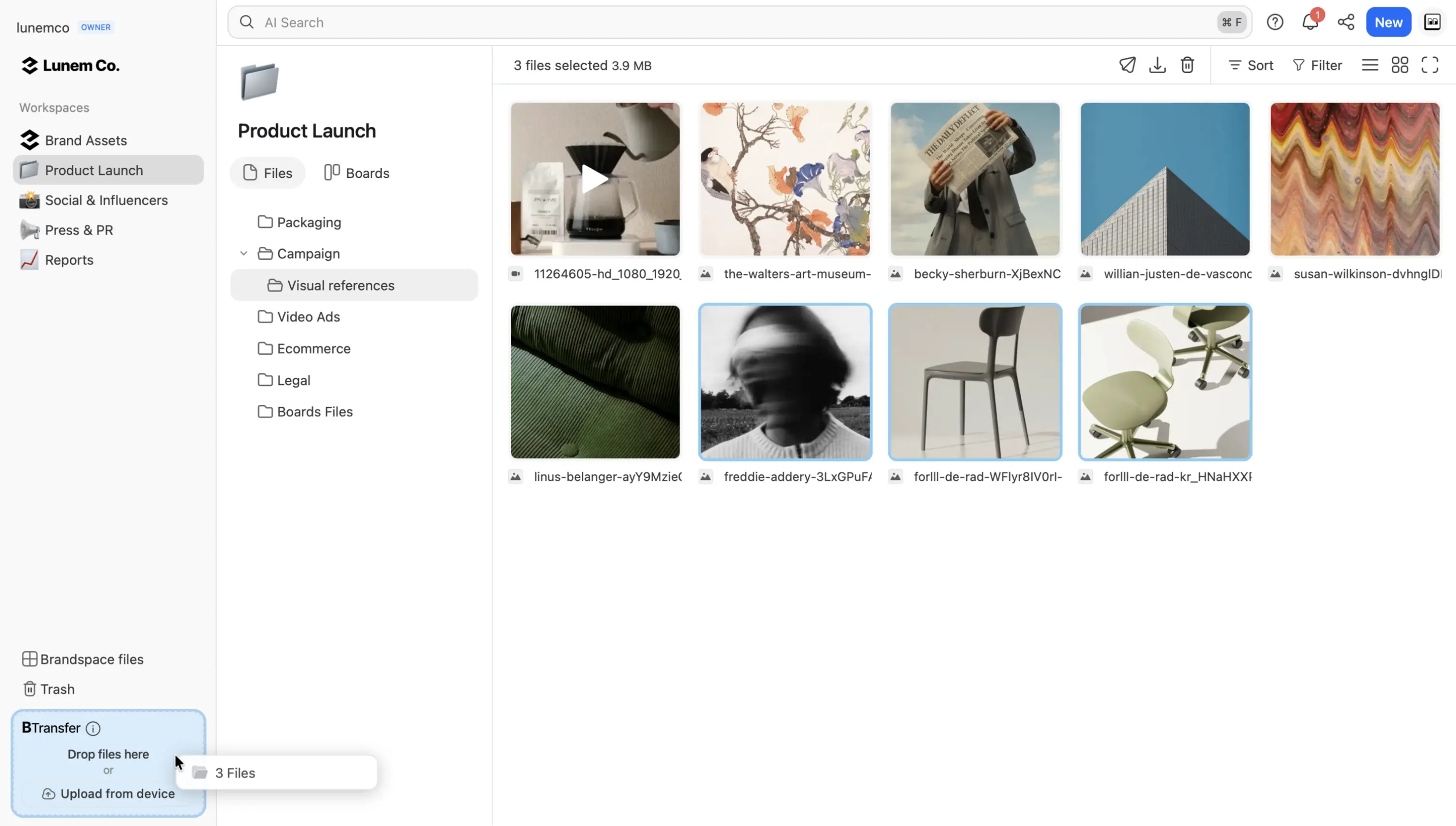
Two upload paths lead to the same transfer: drop a file straight into a new transfer for a one-off send, or pick a video that already lives in your Brault library, which skips the upload because the file is already there.
Where Brault does not fit: a single 500 GB send you will never repeat is cheaper on a pay-per-gigabyte service or on a drive in the post, and a file you only want to hand to a friend once is fine on WeTransfer or Smash.
How do you send long videos from a phone?
You send long videos from a phone by sending a link or a file, never chat media, because every messaging app shrinks video sent through its media picker. The route depends on where the recipient is.
On iPhone:
- Nearby Apple device: AirDrop. Any size, original quality.
- Far away, up to 5 GB: Mail Drop. Attach the video in the Mail app, tap Send, and choose Mail Drop; the recipient gets a link that works for 30 days.
- Far away, larger: share an iCloud link from Photos (Share, then Copy iCloud Link), or upload to a transfer app. Brault for iPhone sends a branded Brault Transfer straight from the photo library, the camera or the Files app, with the same caps as your plan.
On Android:
- Nearby phone or Windows PC: Quick Share.
- Far away: upload to Google Drive or Google Photos and share the link, or open a transfer service in the browser.
In WhatsApp: tap the attachment icon, choose Document instead of Gallery, and pick the video. WhatsApp then sends the exact file, up to 2 GB.
For a multi-gigabyte master on a weak mobile connection, move the file to a computer first (AirDrop, Quick Share or a cable) and upload from there. Phones lock and drop the connection; a desktop does not. Step-by-step guides for each phone: how to send large video from iPhone, how to send long videos from your phone (WhatsApp, Telegram, Messenger and Android), and, for getting footage onto your own computer, how to send photos from iPhone to computer, where the same routes apply to video.
Why does my video get compressed?
Your video gets compressed because the app you send it through makes a smaller copy, not because sending damages the file. Messaging apps and social platforms are built for mobile data, so they re-encode video at a lower resolution and bitrate before upload.
- WhatsApp recompresses photos and videos sent as media, even with HD on. Sent as a Document, the file arrives untouched up to 2 GB.
- iMessage shrinks large videos sent as messages; Mail Drop and iCloud links keep the original.
- Messenger, Instagram, TikTok and X re-encode everything you upload.
- Discord does not re-encode, but it refuses files over 20 MB on a free account, about ten seconds of 4K.
- Email keeps the file intact, but Base64 encoding makes it about a third bigger in transit, so a 20 MB video becomes roughly 27 MB and bounces on a 25 MB limit.
Every link-based method in the comparison table moves the file byte for byte: cloud links, transfer services, Mail Drop and Brault Transfer hand the recipient the same file you exported.
How do you compress a video before sending?
You compress a video before sending by exporting a smaller version from your editor or a free tool such as HandBrake, with a lower bitrate or resolution. Compress only when the recipient genuinely needs a smaller file; a link carries the full-quality version just as easily.
Three rules give a smaller file with the least visible loss:
- Export, do not zip. Video is already compressed, so zipping a 10 GB H.264 file saves 1 to 2 % and adds an unzip step for the recipient.
- Lower the bitrate before the resolution. A 4K review copy at 10 to 20 Mbps in H.264 or H.265 is a fraction of a ProRes master and looks fine on a laptop. Drop to 1080p if the recipient watches on a phone.
- Keep the master. Send the compressed copy for review, then send the full-resolution file once the cut is approved.
The settings by target size, the free online tools and the phone apps are in how to compress video for email. If the reason to compress is only the email limit, skip the compression: how to send large files via email shows how Gmail, Outlook and Apple Mail switch to a link for you.
Which method should you use?
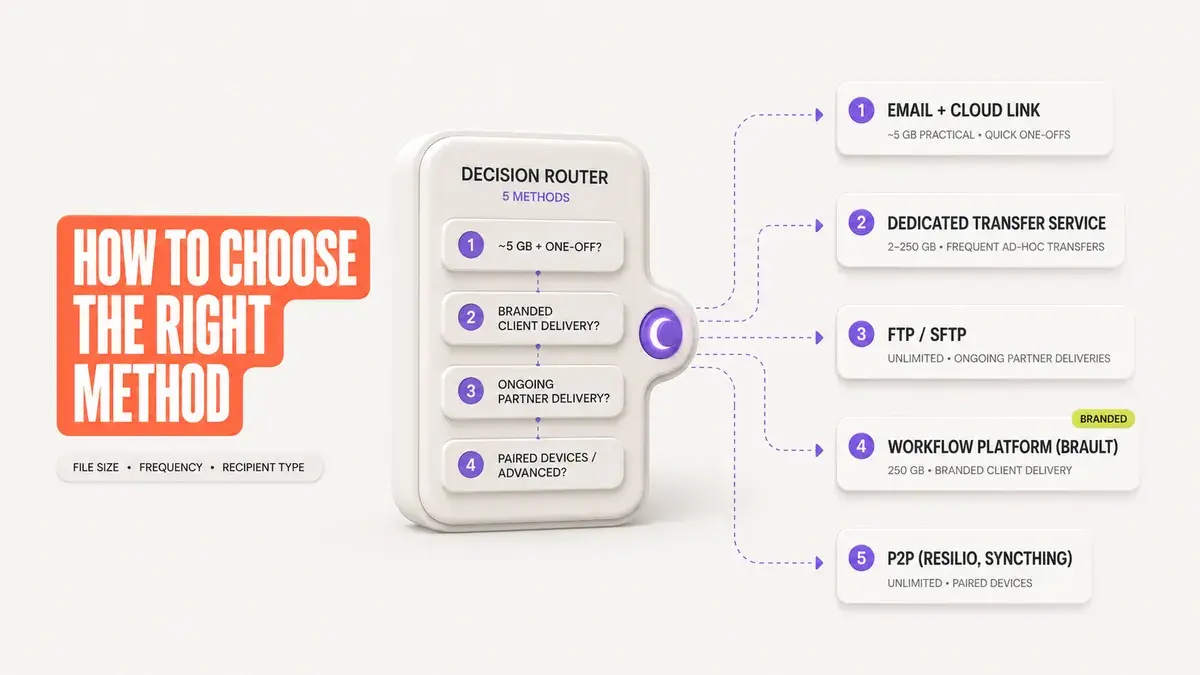
Choose by who receives the video, then by size.
A friend or family member
Under 3 GB, WeTransfer Free or a Mail Drop link. Larger, a Google Drive link or Smash. On WhatsApp, send as Document up to 2 GB. Nearby, AirDrop or Quick Share.
A colleague on your team
The shared drive you already use, set to "anyone in the organization". Slack takes files up to 1 GB. For a master that should not live in chat history, a transfer link with an expiry.
A client
A branded download page with no account, a password and an expiry. Brault Transfer covers 2 GB free, 50 GB on Lite at $4, 100 GB transfers on Pro at $12 and 250 GB on Growth at $70.
Someone giving feedback
A review link they can stream and comment on at a timestamp, so nobody downloads a master to say what to change. Send the full file only after approval.
A 250 GB shoot or more
Brault Growth for up to 250 GB per transfer. Above that, a pay-per-gigabyte service, SFTP for a technical partner, or a drive in the post.
From a phone, right now
A link from the share sheet (iCloud link, Mail Drop, Google Drive or a transfer app), never chat media. Move multi-gigabyte files to a computer first.
Frequently asked questions
How do you send a large video file for free? Upload it to a free transfer service or cloud drive and send the link. WeTransfer Free sends 3 GB per transfer (10 transfers or 3 GB a month, 3-day link), Smash Free takes any size with a 7-day link and priority up to 2 GB, Google Drive holds 15 GB shared with Gmail and Photos, and Brault Transfer Free sends 2 GB per transfer, 5 times a month, with your own logo on the download page.
How do you share large video files with someone who has no account? Use a transfer link rather than a shared folder. WeTransfer, Smash, iCloud Mail Drop and Brault Transfer let the recipient download from a web page without signing up. Google Drive and Dropbox links work when set to "anyone with the link", but on a phone they often push the recipient towards the app or a sign-in.
What is the best way to send large video files? A transfer link that keeps the original file and opens without an account. Under 3 GB, WeTransfer Free or Brault Transfer Free is enough; up to 15 GB, a Google Drive link works; for 50 GB a send, Brault Lite at $4 a month billed annually adds your branding and a password, Pro at $12 adds 100 GB transfers and expiry dates, and Growth at $70 sends unlimited 250 GB transfers.
How do you send long videos from a phone? Not as chat media. On iPhone, use AirDrop nearby, or Mail Drop (5 GB, 30 days) or an iCloud link for someone far away. On Android, use Quick Share nearby or a Google Drive link. In WhatsApp, send the video as a Document to keep the original up to 2 GB.
How can you send a large video file by email? Send a link, not an attachment. Gmail and Outlook.com stop at 25 MB and iCloud Mail at 20 MB, and encoding makes a file about a third bigger in transit. Gmail offers a Drive link, Outlook a OneDrive link and Apple Mail a Mail Drop link of up to 5 GB when you go over.
Why does my video get compressed when I send it? The app makes a smaller copy to save mobile data: WhatsApp media, iMessage, Messenger and Instagram all lower the resolution or bitrate. Send the video as a file (a WhatsApp Document, a Mail Drop link, a Drive or transfer link) and the recipient gets the original.
How do you send a 50 GB video file? Use a service with a per-transfer cap of at least 50 GB: Brault Lite ($4 a month billed annually) with branding and a password, Dropbox Transfer on Plus (50 GB) or Essentials and Business (100 GB), or Smash Free, which accepts it but queues free transfers over 2 GB. Upload from a wired connection and keep the computer awake.
Key takeaways
- A large video travels as a link: email stops at 20 to 25 MB, and a link moves the file byte for byte.
- Free caps in 2026: WeTransfer 3 GB, Mail Drop 5 GB, Google Drive 15 GB, Smash any size with a queue over 2 GB, Brault Transfer 2 GB with your branding.
- Paid caps: Brault Lite 50 GB at $4, Pro 100 GB transfers at $12, Growth 250 GB at $70 (billed annually); Dropbox Transfer up to 100 GB on Essentials and Business.
- Quality is lost only when an app re-encodes: send as a document or link, never as chat media.
- For clients, use a branded page with no account, a password and an expiry date; for feedback, a review link instead of a download.
- To shrink a file, export a smaller version from the editor; zipping a video saves almost nothing.