To send a large video from an iPhone, share a link instead of attaching the file: iMessage attaches videos up to about 100 MB and then offers an iCloud link, Mail attaches up to 20 MB and then offers Mail Drop up to 5 GB, and WhatsApp compresses anything sent as media. Apple's own guide names three routes, AirDrop, an iCloud link and Mail Drop, and a transfer app covers the case they do not: a video over 5 GB, or one that should land on a download page with your name on it.
This guide gives each route with its size cap and its steps, from the Photos app to a transfer link, and shows which one to use for a nearby friend, an Android phone, a Windows PC or a client. The general method by file size lives in how to send large video files, the messaging-app limits in how to send long videos from your phone, and the email caps in how to send large files via email.
TL;DR
- Nearby Apple device: AirDrop, no size limit, original quality.
- Anyone, anywhere: share an iCloud link from Messages, or a Google Photos or Drive link.
- By email: Mail Drop, up to 5 GB, link valid 30 days.
- Over 5 GB or for a client: a transfer app; Brault for iPhone sends from Photos up to 2 GB free and 250 GB on Growth.
- Never as MMS or as WhatsApp media: both re-encode the video.
Why won't my iPhone send a large video?
Because every channel on the phone has a cap that is far below the size of a modern video, and several of them compress before sending. The caps, verified on each provider's documentation on 2026-09-20 unless noted:
| Route on iPhone | Cap | What happens above it |
|---|---|---|
| iMessage (Apple to Apple) | About 100 MB, not published by Apple | Messages offers an iCloud link instead |
| SMS/MMS to a non-Apple phone | About 1 MB to 3.5 MB, carrier-dependent | Heavy compression |
| Mail attachment | 20 MB in Mail; 25 MB on Gmail and Outlook.com | Mail offers Mail Drop |
| Mail Drop | 5 GB per message, 30 days | Refused |
| WhatsApp, sent as media | 100 MB and 720p by default | Compressed on send |
| WhatsApp, sent as document | 2 GB | Refused above 2 GB, no compression |
| AirDrop | No practical limit | Needs an Apple device in range |
Sources: Apple's "Share long videos on iPhone" and "Send large files with Mail Drop" pages, Google's Gmail attachment page, Microsoft's Outlook.com sending limits, WhatsApp Help Center. Apple does not publish the iMessage attachment size; 100 MB is the widely reported figure.
The video is large because the camera is good. Apple's estimates in Settings, Camera, Record Video are about 65 MB a minute at 1080p 30 fps, 190 MB a minute at 4K 30 fps and 440 MB a minute at 4K 60 fps in the default HEVC format. A 90-second 4K clip is already three times the iMessage cap.
| Video from an iPhone | 1 minute | 5 minutes | 20 minutes |
|---|---|---|---|
| 1080p at 30 fps | 65 MB | 325 MB | 1.3 GB |
| 4K at 30 fps | 190 MB | 950 MB | 3.8 GB |
| 4K at 60 fps | 440 MB | 2.2 GB | 8.8 GB |
Apple's own per-minute estimates from the Camera settings, HEVC (High Efficiency) format. Most Compatible (H.264) files are larger.
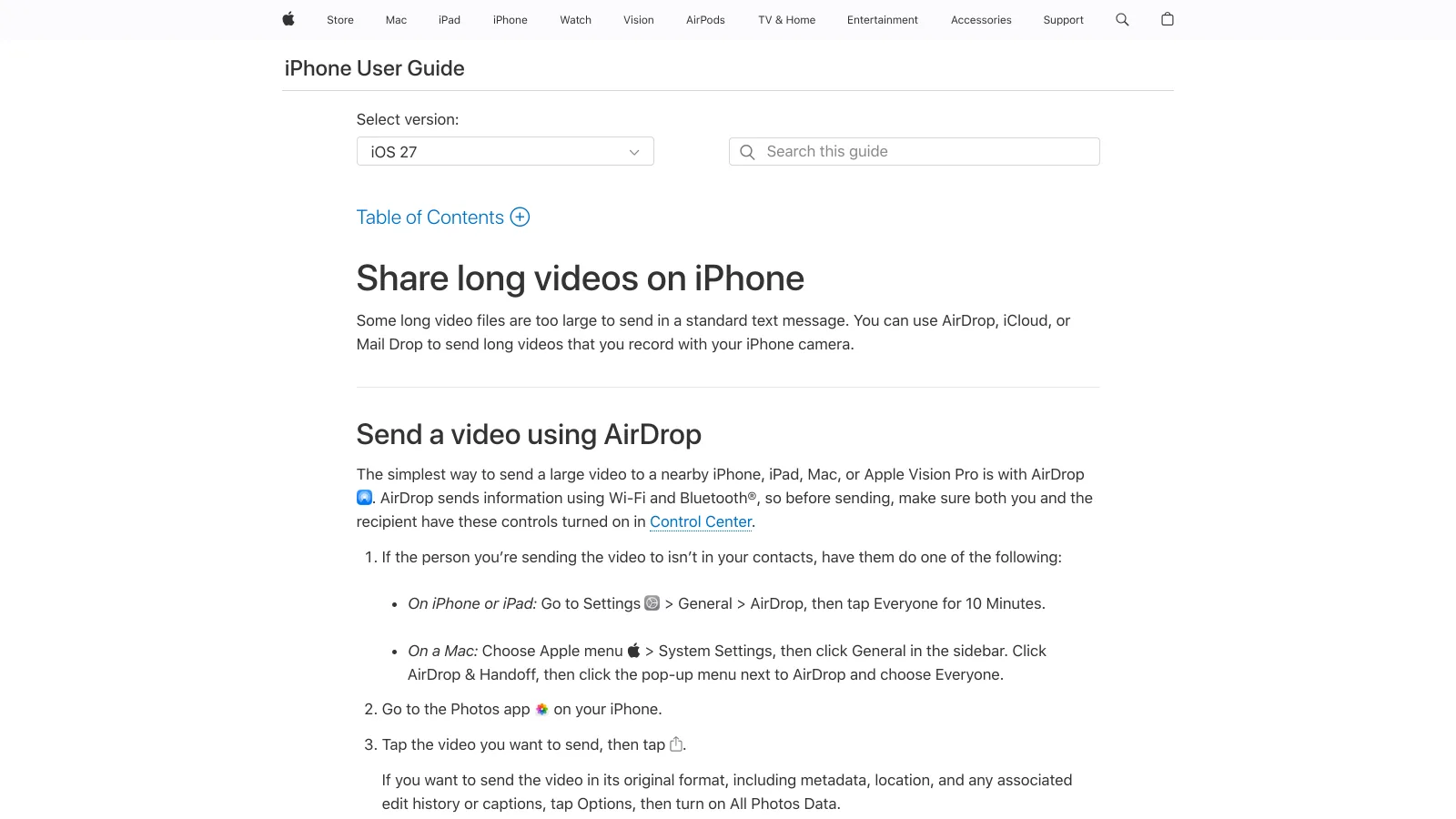
How do you send a large video from iPhone with AirDrop?
AirDrop is the answer when the other person has an iPhone, iPad or Mac and is in the same room. It moves the original file over Wi-Fi and Bluetooth, with no size cap that matters and no compression.
- Open the video in Photos and tap Share.
- Tap AirDrop and choose the device or the person. If they do not appear, they set AirDrop to Everyone for 10 Minutes in Control Center.
- They tap Accept; the video lands in their Photos, or in Downloads on a Mac.
It does not work across the internet, and it does not reach Android or Windows. For those, keep reading.
How do you send a large video from iPhone by iCloud link?
Messages does this on its own. When a video is too large to attach, Messages offers to send an iCloud link instead of the file; the recipient opens the link in any browser and downloads the original. The link stays valid for 30 days.
- In Messages, tap the plus button, choose Photos and select the video.
- If the video is over the attachment size, accept the iCloud link option.
- Send. The recipient, on any device, taps the link and downloads the full file.
The same mechanism is available from Photos: tap Share, then Copy iCloud Link, and paste the link into any app. This is the route for an Android phone or a Windows PC when the person is not nearby.
How do you send a large video from iPhone by email?
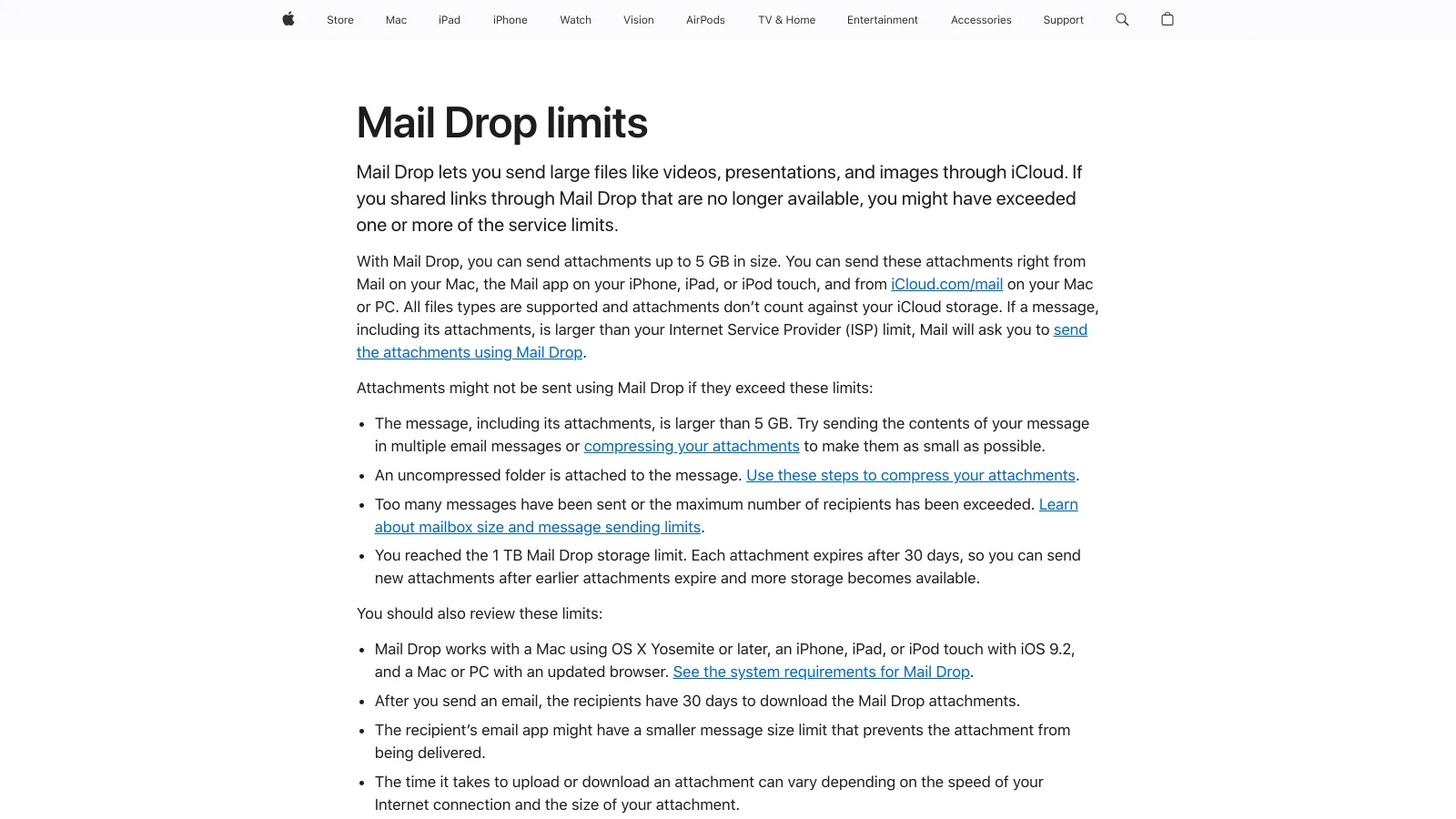
Mail attaches up to 20 MB on its own and then offers Mail Drop, which uploads the video to iCloud and sends a link in the message. Apple's limits are 5 GB per message, 30 days to download, and the attachments do not count against your iCloud storage.
- In Mail, write the message, tap the attachment icon and choose the video from Photos.
- When Mail asks, choose Use Mail Drop.
- Send. The recipient gets a link in the email body and downloads the original.
Gmail and Outlook on iPhone behave differently: their attachment cap is 25 MB, and above it they attach a Google Drive or OneDrive link instead. The rules per provider are in how to send large files via email.
How do you send a large video from iPhone to Android or Windows?
As a link, through any of the routes above except AirDrop. An iCloud link from Messages or Photos opens in Chrome on Android and in any browser on Windows. If the person lives in Google's world, share the video from Photos to Google Photos or Google Drive and send the link from there. If they should not need an account at all, use a transfer link.
What to avoid: sending the video in Messages to an Android number, which turns it into an MMS of a few megabytes, and WhatsApp as media, which sends it at 100 MB and 720p. In WhatsApp, attach the video as a document (Attach, Document, Choose from Photos) and it goes uncompressed up to 2 GB.
How do you send a large video from iPhone with a transfer app?
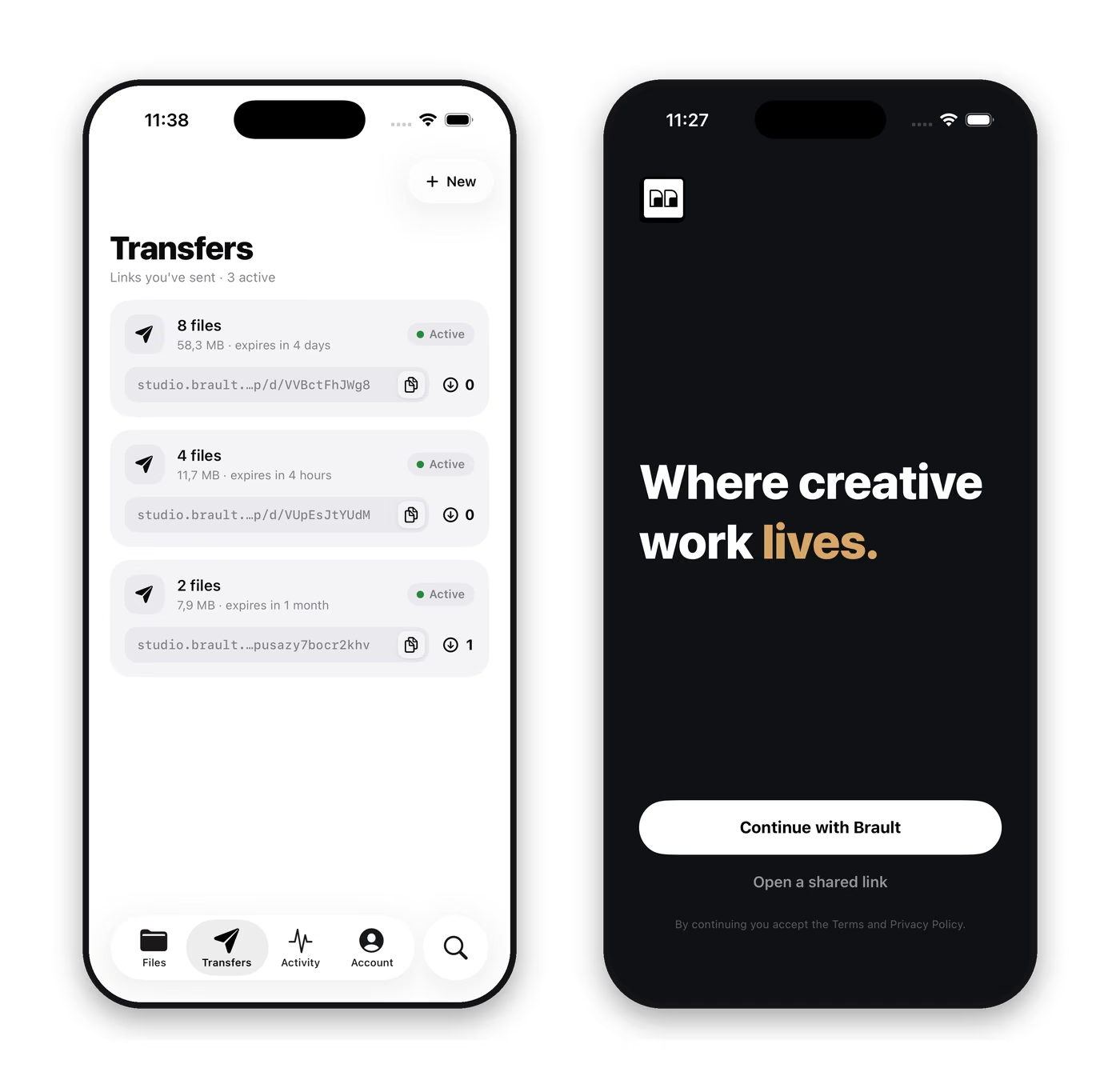
A transfer app is the route for a video over 5 GB, for a client delivery, or when you want a download page with your own name and logo instead of a generic link. With Brault for iPhone, the transfer starts in the Photos library:
- Open the Transfers tab and tap New, or open a file's share options and choose Create transfer link.
- Tap Choose from your photos and pick the video; Add from Brault picks a file already in your library, so nothing uploads twice.
- Turn on Password protect and set Expires in if your plan includes them.
- Tap Create transfer link. The upload runs in the background; when it finishes, the transfer lists its link.
- Tap Copy link or Share link and paste it into Mail, Messages, WhatsApp or any app. The recipient opens a download page with your brandspace branding and needs no account.
The caps are the ones of your plan: 2 GB per transfer on Free, 50 GB on Lite, 100 GB on Pro and 250 GB on Growth, with password protection from Lite and expiry options from Pro. The full table is in plans and limits, and the step-by-step with the failure cases in send a Brault Transfer from your iPhone.
The other transfer apps that work from an iPhone, with their free caps:

- Best forA one-off send with no account for the recipient
- PricingFree; Ultimate $23 a month for transfers up to 1 TB (US list, verified 2026-09-14)
- Free plan3 GB per transfer, 10 transfers or 3 GB per 30 days, 3-day expiry
- Watch outOne 4K clip can use up the free monthly cap; ads on free downloads

- Best forPeople whose videos already live in Dropbox
- PricingPlus $9.99 a month with 2 TB and 50 GB transfers (US list, verified 2026-09-14)
- Free plan2 GB of storage, Transfer up to 2 GB
- Watch outPasswords on transfer links start on the team plans

- Best forDelivering the original file with your name on the download page
- Pricing$0 Free, $4 Lite, $12 Pro, $70 Growth a month, billed annually
- Free plan5 transfers a month of up to 2 GB, branded page, no ads
- Watch outThe iPhone app needs iOS 26; on Android and older iPhones, transfer from the browser
How do you send a large video from iPhone without losing quality?
Pick a route that moves the file, not one that re-encodes it. AirDrop, an iCloud link, Mail Drop, a cloud drive link and a transfer service all deliver the file as recorded. The routes that degrade it are MMS, iMessage to a non-Apple phone, WhatsApp and Messenger as media, and Instagram or TikTok direct messages.
Two settings matter before you record. If the recipient edits on Windows or an older machine, Settings, Camera, Formats, Most Compatible records H.264 instead of HEVC, which opens everywhere at the cost of a larger file. And if you crop or trim in Photos before sending, Photos keeps the original; share the edited version and the recipient gets the trimmed clip at the same quality.
Which way should you use to send a large video from an iPhone?
The person is next to you with an Apple device
AirDrop. No cap, no compression, no upload. It is the only route that does not need a connection.
A friend or family member, anywhere, on any phone
An iCloud link from Messages or Photos, or a Google Photos link. Free, up to 30 days, opens in any browser.
An email thread, under 5 GB
Mail Drop from the Mail app. The link lives in the message and does not use your iCloud storage.
A client, or a video over 5 GB
A transfer link. Brault for iPhone sends from Photos up to 250 GB on Growth, with a password, an expiry date and your branding on the download page.
Frequently asked questions
How do I send a video that is too big from my iPhone?
Send a link instead of the file. On iPhone the built-in routes are AirDrop when the other person is next to you, an iCloud link that Messages offers automatically when a video is too large to attach, and Mail Drop in Mail for videos up to 5 GB. For anything bigger, or for a client who should see your name on the download page, upload the video from Photos to a transfer app such as Brault for iPhone and share the link; Brault Transfer sends up to 2 GB per transfer free and up to 250 GB on Growth.
What is the largest video you can send from an iPhone?
It depends on the route, not on the phone. AirDrop has no practical size limit. Mail Drop caps a message at 5 GB. iMessage attaches videos up to roughly 100 MB and then switches to an iCloud link. WhatsApp sends videos at 100 MB as media and 2 GB as a document. Transfer apps set their own caps: WeTransfer 3 GB free, Brault Transfer 2 GB free, 50 GB on Lite, 100 GB on Pro and 250 GB on Growth.
Can I send a large video from iPhone to Android?
Yes, as a link. AirDrop only reaches Apple devices, but an iCloud link from Messages opens in any browser, Mail Drop links work on any device, and a Google Photos, Google Drive or transfer link (WeTransfer, Brault Transfer) downloads the original on Android or Windows. Avoid sending the video as an MMS to an Android number: it is compressed to a few megabytes.
Does AirDrop reduce video quality?
No. AirDrop moves the original file over Wi-Fi and Bluetooth, so a 4K clip arrives as the same 4K file. Quality is lost when a video goes through a channel that re-encodes it: MMS, iMessage to a non-Apple phone, WhatsApp sent as media or Messenger. Sending as a document, as an iCloud link or through a transfer service keeps the original.
How do I send a 2 GB video from my iPhone?
A 2 GB video is about 30 minutes of 1080p or 10 minutes of 4K. It fits in Mail Drop (5 GB), in an iCloud link from Messages, in WhatsApp as a document (2 GB is the cap) and in the free plans of most transfer apps: Brault Transfer sends 2 GB per transfer on Free and WeTransfer 3 GB. Upload it once and share the link; do not attach it to an email, which stops at 20 to 25 MB.
Photos rather than video? How to send photos from iPhone to computer: 8 ways compared covers AirDrop, USB, iCloud and the library route.
Key takeaways
- A large video leaves an iPhone as a link, not as an attachment: iMessage stops near 100 MB, Mail at 20 MB, WhatsApp media at 100 MB and 720p.
- Apple's three routes cover most cases: AirDrop nearby (no limit), an iCloud link in Messages (30 days), Mail Drop by email (5 GB).
- To Android or Windows, every link route works; only AirDrop does not. Never send the video as MMS or as WhatsApp media.
- Quality is lost only in channels that re-encode; AirDrop, links and transfer services deliver the recorded file.
- For a client or a video over 5 GB, Brault for iPhone sends from Photos with a branded download page, 2 GB per transfer free and 250 GB on Growth; WeTransfer's app sends 3 GB free.
Sending videos to clients every week from your phone? Get Brault for iPhone and send them from your library with your name on the page.