To convert MOV to MP4 on a Mac, check the codec first: if the video inside is H.264 or HEVC, a remux moves it into an MP4 container in a couple of seconds with no quality change, using the avconvert command built into macOS or the free ffmpeg tool. If the MOV holds ProRes or another codec, it has to be re-encoded, with avconvert, ffmpeg, or QuickTime Player's Export As followed by a rename. Every method below was run on the same three clips on macOS 26.5 on 2026-11-11.
MOV is Apple's QuickTime movie format, the one an iPhone, QuickTime screen recordings and most cameras that shoot ProRes produce. MP4 is the format websites, upload forms, content management systems and Windows apps expect. The difference is mostly the wrapper, not the picture, which is why the fastest method is often the one that does not touch the picture at all. If the clip is still on the phone, how to send a large video from iPhone covers the transfer first.
Which method should you use to convert MOV to MP4 on a Mac?
The avconvert command is the right method for most people, because it ships with macOS, writes a real .mp4 and can either copy the video or re-encode it. QuickTime Player and the Finder are the click-only options, but both save a .mov, and ffmpeg is the only one that converts a folder with subfolders and picks the right mode per file.
| Method | Best for | Writes .mp4 | Keeps quality (remux) | Batch |
|---|---|---|---|---|
| Rename the extension | One H.264 or HEVC file, no tools | Name only | Yes, nothing changes | No |
| QuickTime Player, Export As | One file, by clicks | No, .mov |
No, always re-encodes | No |
| Finder, Encode Selected Video Files | A selection, by clicks | No, .mov |
No, always re-encodes | Yes, selected files |
Terminal, avconvert |
One file, built into macOS | Yes | Yes, with PresetPassthrough | One file per command |
Terminal, ffmpeg |
A whole folder tree | Yes | Yes, with -c copy |
Yes, subfolders included |
Tested on macOS 26.5 on 2026-11-11 on an Apple M4 Pro with ffmpeg 9.0. iMovie, HandBrake and VLC also convert MOV to MP4 but were not installed on the test Mac.
What is the difference between MOV and MP4?
MOV and MP4 are containers: files that hold a video stream, an audio stream and some metadata, each compressed with its own codec. Both formats descend from the same QuickTime file structure, so the common codecs fit in either one. H.264 (also called AVC) and HEVC (H.265, the iPhone default) can move from a MOV to an MP4 untouched. Apple ProRes, the editing codec of many cameras and of Final Cut Pro exports, does not fit in a standard MP4: both ffmpeg and avconvert refused to copy it, so a ProRes MOV must be re-encoded, and its uncompressed PCM audio is usually turned into AAC on the way.
That gives two ways to "convert":
- Remux: copy the existing video and audio into a new MP4 container. It takes a fraction of a second, the size stays the same and there is no quality loss. It only works for codecs MP4 accepts.
- Re-encode: decode the video and compress it again, usually as H.264 with AAC audio. It takes longer, it changes the size, and every re-encode loses a little quality.
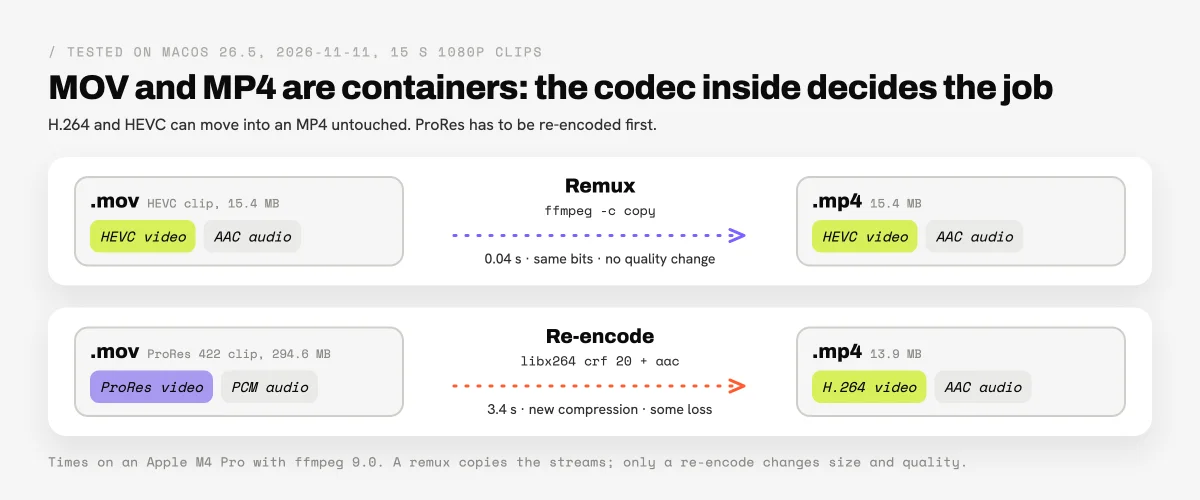
To see the codec, select the file in the Finder, choose File, then Get Info, and read Codecs under More Info. "H.264" or "HEVC" means a remux will work; "Apple ProRes 422" or similar means a re-encode.
Can you just rename a .mov file to .mp4?
Renaming a .mov file to .mp4 works when the video inside is H.264, which is the first method in Apple's guide to converting a MOV file to MP4 on Mac. In the Finder, Control-click the file, choose Rename, replace mov with mp4, press Return and choose Use .mp4. Duplicate the file first if you want to keep the original name.
In the test, the renamed H.264 and HEVC files opened and played in QuickTime Player, but the data did not change: both still declared themselves QuickTime movies inside, not MP4. Most players ignore that, while a strict upload form or a video platform can still reject the file, and Apple's own advice for that case is to convert it properly. Renaming a ProRes MOV is pointless: it becomes a file named .mp4 that most MP4 players cannot decode. A remux with avconvert or ffmpeg, below, takes about as long as a rename and writes a real MP4.
How do you convert MOV to MP4 with QuickTime Player?
QuickTime Player re-encodes a MOV as H.264 with its Export As command, but it saves the result as a .mov, and Apple's QuickTime Player export guide states that it does not export MP4. The export is still useful for ProRes and other codecs, because the H.264 file it writes can then be renamed to .mp4.
- Open the MOV in QuickTime Player.
- Choose File, then Export As, then 1080p… (or 4K, 720p or 480p; sizes larger than the source are dimmed).
- Set the format menu to Greater Compatibility (H.264). For an HEVC source, QuickTime selects Smaller File Size (HEVC) by default.
- Click Save.
- Rename the exported
.movto.mp4as described above.
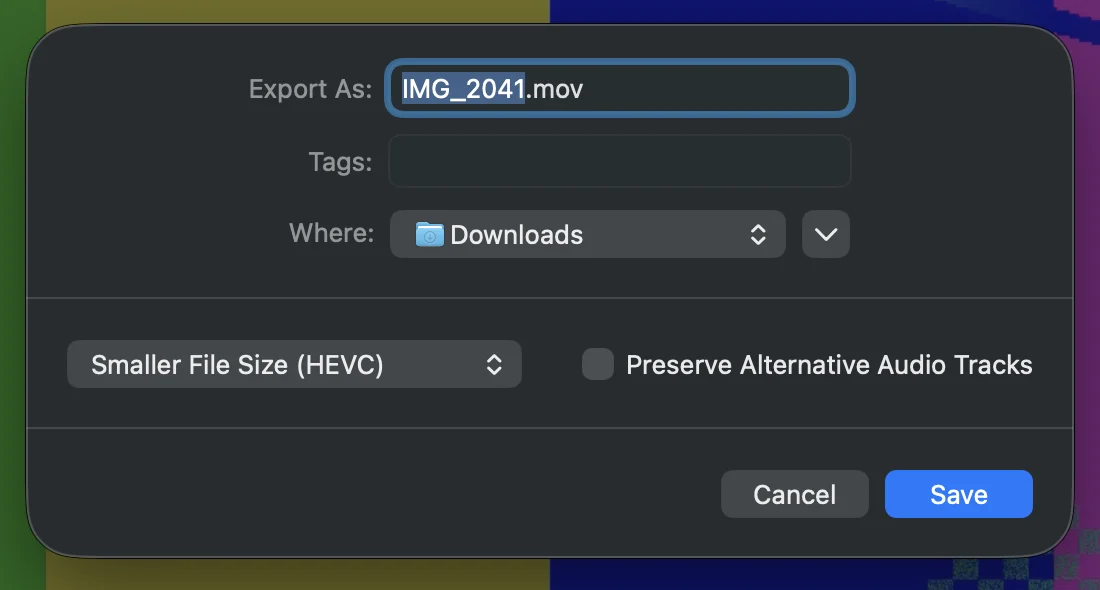
In the test, the 1080p export took about 3 seconds per 15-second clip on an M4 Pro. It turned the 294.6 MB ProRes clip into a 19.9 MB H.264 file and the 15.4 MB HEVC clip into a 17.4 MB H.264 file, larger than the source because H.264 compresses less efficiently than HEVC. An H.264 source at the same resolution was copied through untouched at 23.1 MB.
How do you convert several MOV files from the Finder?
The Finder re-encodes several videos at once with the Encode Selected Video Files service, which sits in the Services menu and needs no app. It writes H.264 or HEVC files next to the originals, as .mov for MOV sources.
- Select the MOV files in the Finder.
- Choose Finder, then Services, then Encode Selected Video Files.
- Set Setting to H.264 1080p (or 480p, 720p, 2160p; the HEVC and ProRes settings are there too).
- Leave Same as source file ticked so the new files land next to the originals, and leave Delete source files after processing unticked.
- Click Continue.
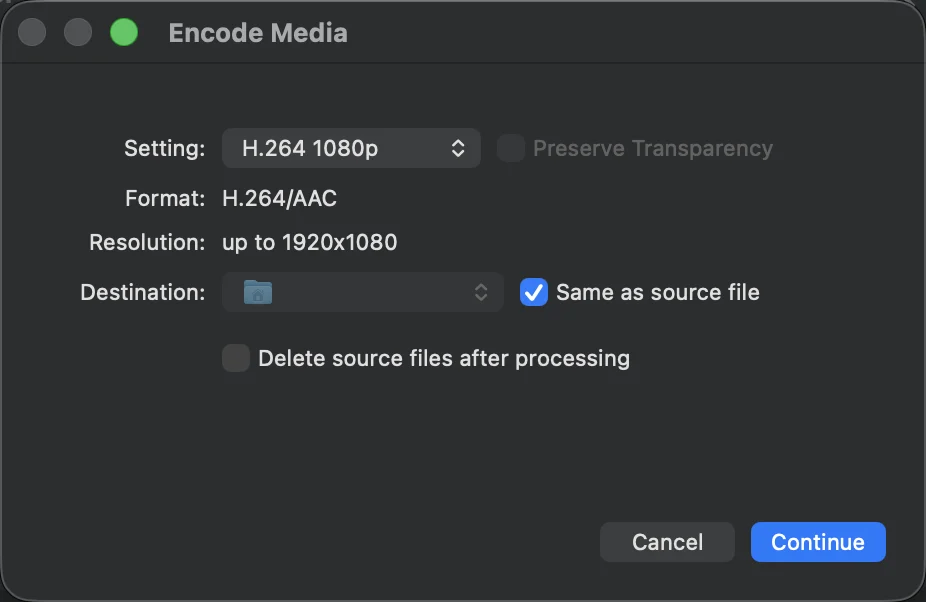
The test HEVC clip came out as IMG_2041-1.mov, H.264 at 1080p and 17.4 MB, the same result as QuickTime's export, which uses the same Apple encoder. Rename the results to .mp4 if the destination needs that extension. The service does not read subfolders, and it re-encodes even when a remux would do.
How do you convert MOV to MP4 in Terminal without installing anything?
The avconvert command, built into macOS, converts a MOV to a real MP4 from Terminal, and it is the only built-in tool that writes a real MP4 without re-encoding. The output type follows the extension you give it, so naming the output .mp4 is enough.
- Open Terminal (Applications, then Utilities).
- Type
cd, with a space, drag the folder that holds the video onto the window and press Return. - Run one of the two commands, replacing the file names.
To copy H.264 or HEVC video into an MP4 without touching it (a remux):
avconvert -s "input.mov" -o "output.mp4" -p PresetPassthrough
To re-encode anything, ProRes included, as H.264 at up to 1080p:
avconvert -s "input.mov" -o "output.mp4" -p Preset1920x1080
In the test, PresetPassthrough wrote MP4s of the HEVC and H.264 clips at the same size in about 2 seconds, and refused the ProRes clip with "file extension mp4 not valid", which is the sign that the codec needs a re-encode. Preset1920x1080 turned the ProRes clip into a 19.9 MB H.264 MP4 in 4.1 seconds, the same size as QuickTime's export. Run avconvert --help to list the other presets, such as Preset1280x720 or Preset3840x2160.
How do you convert MOV to MP4 with ffmpeg without losing quality?
ffmpeg converts MOV to MP4 without losing quality by remuxing with -c copy, which copies the H.264 or HEVC streams into an MP4 container instead of compressing them again. It is a free, open-source command-line tool, and it installs once with Homebrew: open Terminal and run brew install ffmpeg.
For one H.264 or HEVC file:
ffmpeg -i "input.mov" -c copy -movflags +faststart "output.mp4"
For ProRes or any file that needs a re-encode, H.264 at constant quality 20 with AAC audio:
ffmpeg -i "input.mov" -c:v libx264 -crf 20 -pix_fmt yuv420p -c:a aac -b:a 160k -movflags +faststart "output.mp4"
-movflags +faststart moves the index to the start of the file so a browser can play the MP4 before it finishes downloading. CRF 20 is close to visually lossless for most footage; a higher number such as 23 makes a smaller file, and the ffmpeg H.264 encoding guide explains the scale. In the test, the remux took 0.04 to 0.06 seconds and the MP4 was the same size as the MOV to within 0.1%. The ProRes re-encode took 3.4 seconds and produced a 13.9 MB file, smaller than QuickTime's 19.9 MB and closer to the master (SSIM 0.983 against 0.969).
To convert a whole folder, run this from the folder instead. It finds every .mov and .MOV file in the folder and its subfolders, remuxes the H.264 and HEVC ones, re-encodes everything else, writes each .mp4 next to its source and never overwrites an existing file:
find . -type f -iname '*.mov' -print0 | while IFS= read -r -d '' f; do
  out="${f%.*}.mp4"
  codec=$(ffprobe -v error -select_streams v:0 -show_entries stream=codec_name -of csv=p=0 "$f")
  if [ "$codec" = "h264" ] || [ "$codec" = "hevc" ]; then
    ffmpeg -nostdin -n -loglevel error -i "$f" -map 0:v:0 -map '0:a?' -c copy -tag:v "$([ "$codec" = hevc ] && echo hvc1 || echo avc1)" -movflags +faststart "$out"
  else
    ffmpeg -nostdin -n -loglevel error -i "$f" -map 0:v:0 -map '0:a?' -c:v libx264 -crf 20 -pix_fmt yuv420p -c:a aac -b:a 160k -movflags +faststart "$out"
  fi
done
The test folder had an HEVC .MOV, an H.264 .mov in a subfolder named Shoot 2026 and a ProRes clip in Shoot 2026/day 2; the loop converted all three in 3.5 seconds in zsh, the default Mac shell, and in bash, and the results opened in QuickTime Player. Two details matter in zsh: '0:a?' must stay quoted, or zsh stops with "no matches found", and -nostdin stops ffmpeg from swallowing the list of files. The -map options keep the main video and audio and skip the extra metadata tracks iPhone videos carry, which ffmpeg cannot copy into an MP4.
How big is the MP4 and how long does each method take?
A remux keeps the MP4 at the size of the MOV and finishes almost instantly, while a re-encode sets a new size that depends on the encoder and the settings. The table has every measured result on the three test clips.
| Method | HEVC MOV, 15.4 MB | H.264 MOV, 23.1 MB | ProRes 422 MOV, 294.6 MB |
|---|---|---|---|
Rename to .mp4 |
15.4 MB, instant | 23.1 MB, instant | Not usable, still ProRes |
| QuickTime, Export As 1080p, H.264 | 17.4 MB .mov, 3 s |
23.1 MB .mov, copied through |
19.9 MB .mov, 3 s |
| Finder, Encode Selected Video Files, H.264 1080p | 17.4 MB .mov, a few seconds |
Not run | Not run |
avconvert PresetPassthrough |
15.4 MB, 2.1 s | 23.1 MB, 2.1 s | Refused |
avconvert Preset1920x1080 |
17.4 MB, 4.1 s | 23.1 MB, copied through | 19.9 MB, 4.1 s |
ffmpeg -c copy |
15.4 MB, 0.04 s | 23.1 MB, 0.06 s | Refused |
| ffmpeg libx264 CRF 20 | 15.4 MB, 1.9 s | 15.6 MB, 2.0 s | 13.9 MB, 3.4 s |
Tested on macOS 26.5 on 2026-11-11, Apple M4 Pro, ffmpeg 9.0. Each clip: 15 seconds, 1920 by 1080, 30 fps, test pattern with light grain, stereo audio; the HEVC and H.264 clips carry AAC audio, the ProRes clip 16-bit PCM. Sizes measured on disk; times are wall-clock for a single run.
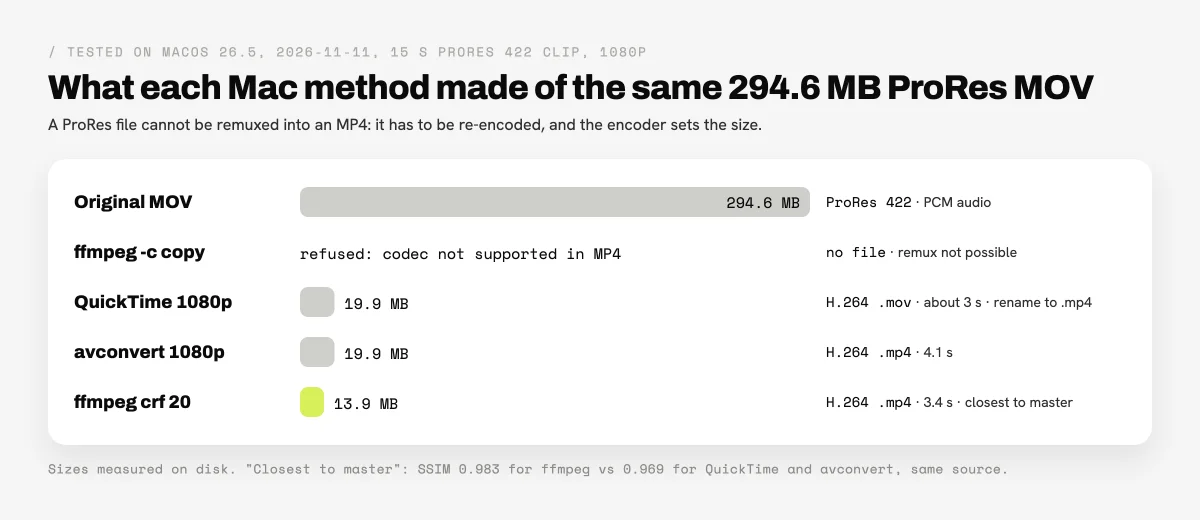
Two results surprise people. Converting an iPhone HEVC clip to H.264 makes it larger, 15.4 MB to 17.4 MB with Apple's encoder, because HEVC is the more efficient codec; if the destination accepts HEVC in an MP4, remux instead. And Apple's encoders copy an H.264 file through when the resolution already matches, so exporting does not shrink a screen recording. Reducing the size is a different job: lower the resolution, or see how to compress a video for email for target sizes.
How can a team convert and send video files every week?
A team that converts videos every week can keep using the free methods, and the ffmpeg loop handles any folder size. What they do not do is deliver the result: the MP4s sit on one person's Mac, and the next step is a second app to send them to a client or a colleague.
Brault, a creative file management platform, puts the conversion and the delivery in the same place. Brault Desktop for Mac converts videos to MP4 or MOV, or extracts the audio as MP3, WAV, M4A or FLAC, in batches of up to 100 files: drop the clips on the menu bar icon or on the panel and choose Convert. The options are the format, the Resolution (Original, 4K, 1080p, 720p or 480p), the Compression level and Keep metadata; a single clip can also be trimmed or turned into a GIF. One batch holds one type of file, all videos in this case. Videos are converted on Brault's servers and saved to Downloads with the same name and the new extension, and from the same panel they can be sent with a Brault Transfer link or added to the team's Brault library. A dropped folder adds the files at its top level, not those in its subfolders. Files already in a Brault library convert from Download as… in the web file viewer.
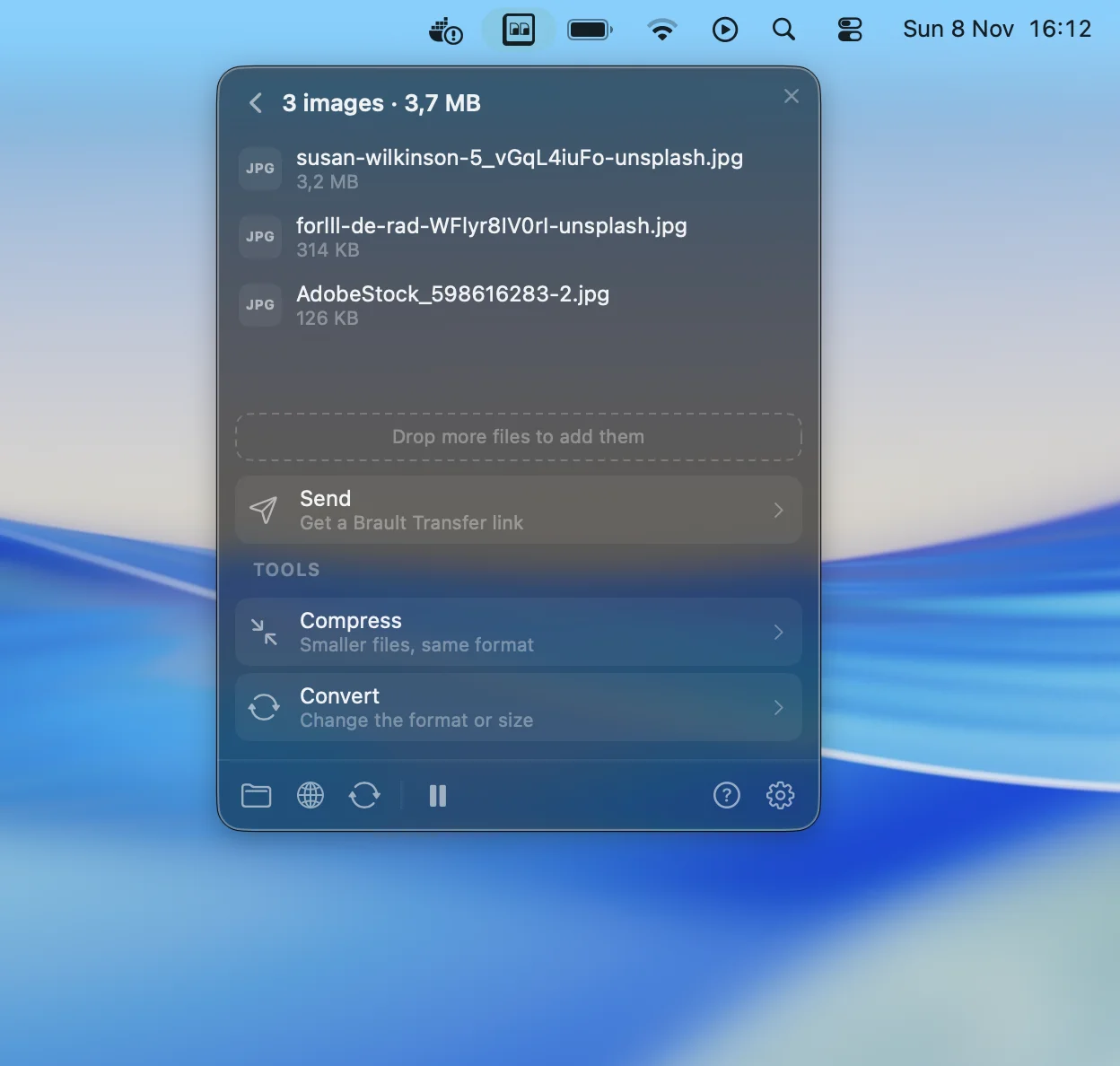
Convert and compress are included in Pro at $12 a month billed annually for individuals (2 TB, 100 conversions a day) and Growth at $70 for teams (5 TB, 4 users included, $4 per extra user, 500 conversions a day); they are not part of the Free plan. Details are on the convert and compress page and plans on the pricing page. For delivery, how to send large video files compares the ways to get a heavy export to a client, and how to convert HEIC to JPG on Mac does the same job as this guide for iPhone photos. More guides like this one live in the file transfer and sharing hub.
Frequently asked questions
How do I convert MOV to MP4 on a Mac for free?
If the MOV holds H.264 or HEVC video, the fastest free way is a remux: the avconvert command built into macOS with the PresetPassthrough preset, or ffmpeg with -c copy, writes an MP4 with the same video inside in a couple of seconds and no quality change. For ProRes or other codecs, re-encode with avconvert -p Preset1920x1080 or ffmpeg with libx264. In a test on macOS 26.5, a 294.6 MB ProRes clip became a 13.9 MB to 19.9 MB H.264 MP4.
Can QuickTime Player convert MOV to MP4?
Not directly. QuickTime Player's File, Export As command saves a QuickTime movie (.mov) at 4K, 1080p, 720p or 480p, and Apple's QuickTime guide states that it does not export MP4. Choose Greater Compatibility (H.264) in the export sheet, then rename the exported .mov to .mp4 or remux it, because an H.264 .mov is accepted as an MP4 by most apps.
Can I just rename a .mov file to .mp4?
Only when the video inside is H.264, which Apple documents, and in practice HEVC. Renaming does not change the data: the file keeps its QuickTime header, plays on a Mac and in most apps, and some upload forms still reject it. A ProRes MOV renamed to .mp4 still contains ProRes, which most MP4 players and websites cannot read. A remux with avconvert or ffmpeg writes a real MP4 without re-encoding.
Does converting MOV to MP4 lose quality?
A remux does not: it copies the H.264 or HEVC video into an MP4 container bit for bit, and in a test the file size changed by less than 0.1%. A re-encode does lose some quality, because the video is compressed again. In a test on macOS 26.5, ffmpeg at CRF 20 stayed closer to a ProRes master (SSIM 0.983) than QuickTime's 1080p export (0.969) while producing a smaller file.
How do I convert several MOV files to MP4 at once on a Mac?
Select the files in the Finder and choose Finder, Services, Encode Selected Video Files, which re-encodes all of them to H.264 next to the originals, or run a find loop with ffmpeg in Terminal. The tested loop remuxes H.264 and HEVC files, re-encodes everything else, reads subfolders, handles spaces in names and works in zsh and bash.
Key takeaways
- MOV and MP4 are containers. H.264 and HEVC video moves from one to the other untouched (a remux); ProRes must be re-encoded.
avconvert, built into macOS, writes a real MP4:-p PresetPassthroughremuxes in about 2 seconds,-p Preset1920x1080re-encodes anything as H.264.- QuickTime Player and the Finder's Encode Selected Video Files re-encode to H.264 but save
.mov; rename the result to.mp4. - ffmpeg remuxed the test clips in under 0.1 seconds, and its CRF 20 re-encode made the smallest ProRes conversion, 13.9 MB, with the closest match to the master. The tested
findloop converts a whole folder tree in zsh or bash. - Teams that convert and send video every week can do both from Brault Desktop for Mac, in batches of up to 100 files, on Pro or Growth.
Want to convert a batch of clips and send them from the menu bar? Try Brault free.