To compress a PDF on a Mac, open it in Preview, choose File, then Export, set Quartz Filter to Reduce File Size and click Save. That is the built-in method, and it shrinks a PDF full of photos dramatically, but it also blurs the photos and offers no quality setting. For a sharper result, the free Ghostscript command with the /ebook setting made the same PDF half the size of Preview's output with more detail kept. Both were measured on the same 23.4 MB, 12-page PDF on macOS 26.5 on 2026-11-11.
A large PDF is almost always large because of its images: photos in a brand guide, a scanned contract, screenshots in a report. Text and vector graphics take very little space. Every method below works by making the images smaller, either in pixels, in JPEG quality, or both, so the real choice is how much image quality you are willing to give up. If the goal is to email the file, the limits are in email attachment size limits; if the PDF is too large even after compressing, how to send large files via email covers the alternatives.
Which method shrinks a PDF most on a Mac?
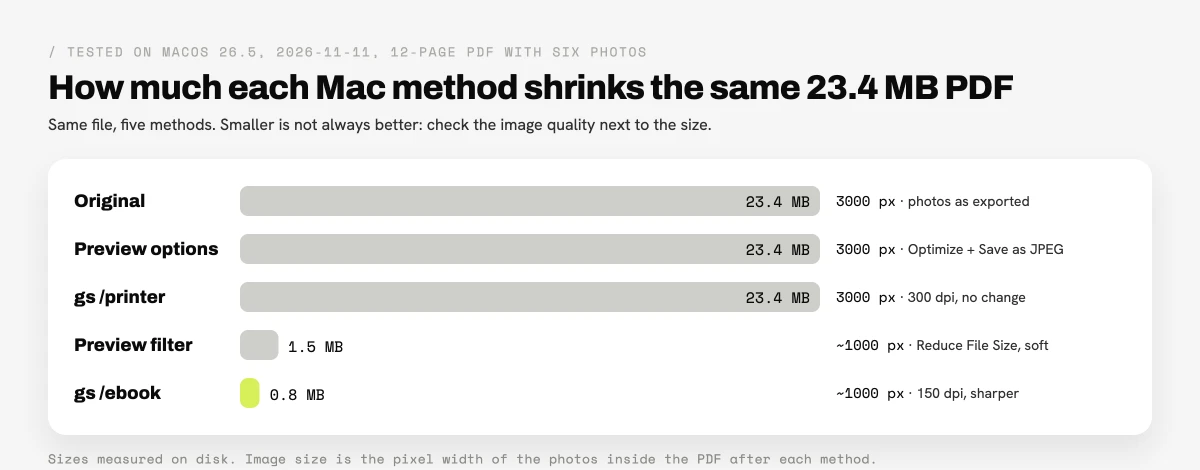
Ghostscript's /ebook setting shrank the test PDF the most and kept the images sharpest, while Preview's Reduce File Size filter came second in size with visibly softer photos. Preview's newer export checkboxes and Ghostscript's /printer setting left the file at its original size, because its photos were already JPEG.
| Method | Size after | Saving | Photos inside | Best for |
|---|---|---|---|---|
| Original export | 23.4 MB | None | 3,000 px wide | The master copy |
| Preview, Quartz Filter: Reduce File Size | 1.5 MB | 93% | About 1,000 px, soft | A quick email copy |
| Preview, Optimize images for screen + Save images as JPEG | 23.4 MB | 0% | 3,000 px | PDFs with uncompressed images only |
Ghostscript /ebook |
0.8 MB | 97% | About 1,000 px, sharper | Documents read on screen |
Ghostscript /printer |
23.4 MB | 0% | 3,000 px | Keeping print quality |
Tested on macOS 26.5 on 2026-11-11 with a 12-page PDF containing six 3,000 by 2,250 pixel photos and text, exported from a browser. Sizes measured on disk; Ghostscript 10.05.1.
How do you compress a PDF with Preview on a Mac?
Preview compresses a PDF with its Reduce File Size Quartz filter, in four steps, as Apple's guide to reducing the size of a PDF in Preview describes.
- Open the PDF in Preview.
- Choose File, then Export… (not Export as PDF, which has no filter).
- Open the Quartz Filter menu and choose Reduce File Size.
- Give the copy a new name in Export As so the original is kept, and click Save.
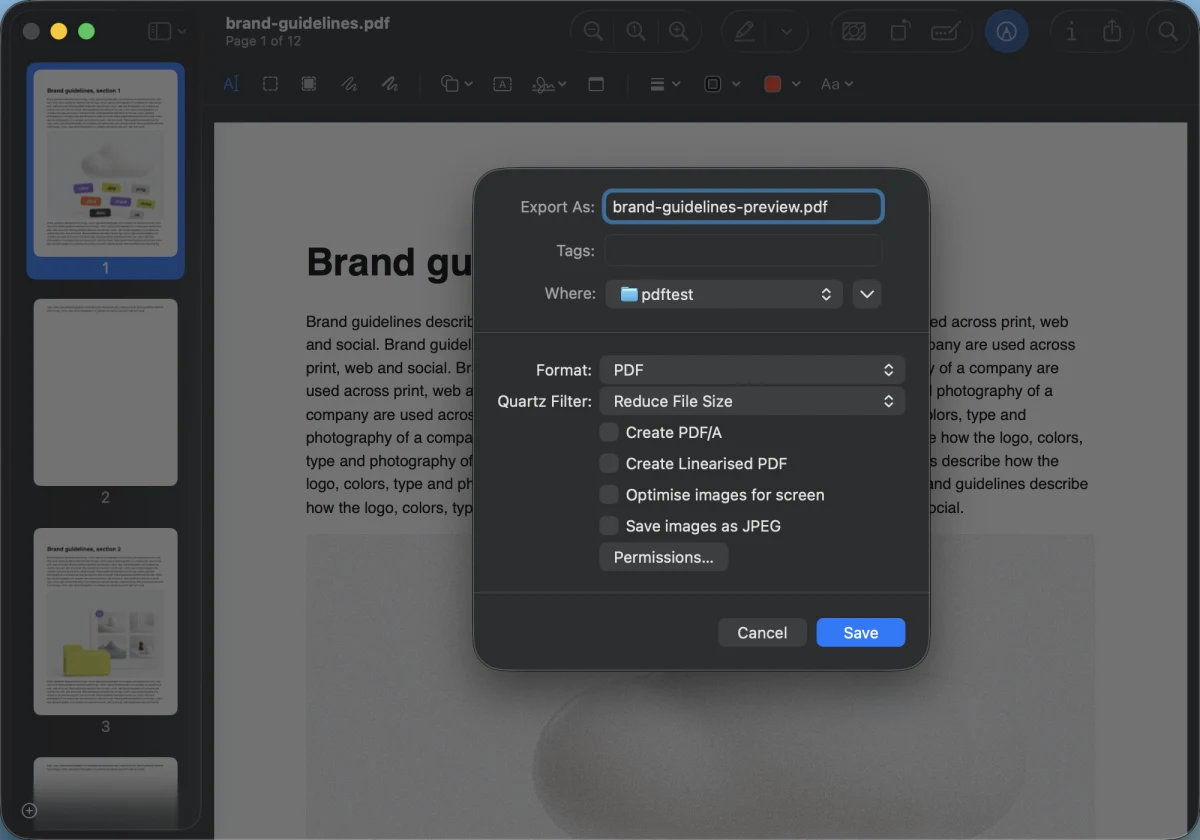
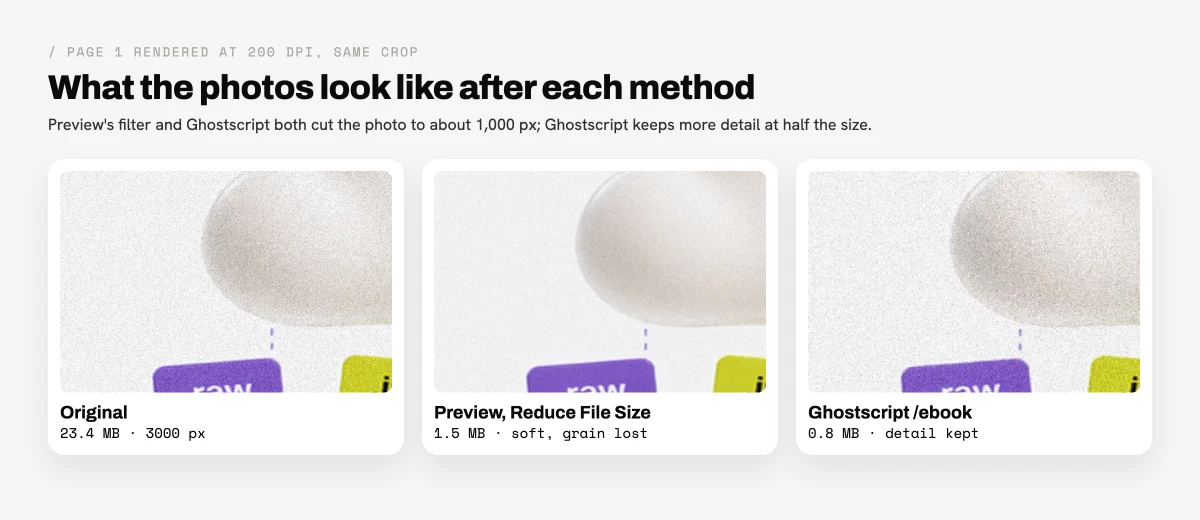
The filter took the test PDF from 23.4 MB to 1.5 MB. It does that by scaling each photo down, from 3,000 to about 1,000 pixels wide in the test, and recompressing it at a low JPEG quality. There is no slider: the filter always applies the same settings, which is why a scanned page or a photo-heavy brochure can come out blurry. Text is not affected, because it is not stored as an image.
The same Export dialog in macOS 26 has four checkboxes. Optimize images for screen and Save images as JPEG are meant to reduce the size, but on the test PDF, whose photos were already JPEG, ticking both with no filter left the file at 23.4 MB. They make a difference on PDFs that store images uncompressed, which some scanners and design exports do. Create Linearized PDF only makes the file open faster in a browser.
How do you compress a PDF without losing quality on a Mac?
Ghostscript compresses a PDF with more control and less visible loss than Preview, and it is free. It is a command-line tool that rebuilds the PDF with one of a few preset quality levels, documented in the Ghostscript manual.
- Install it once with Homebrew: open Terminal and run
brew install ghostscript. - In Terminal, type
cd, with a space, drag the folder that holds the PDF onto the window, and press Return. - Run the command, replacing the two file names:
gs -sDEVICE=pdfwrite -dCompatibilityLevel=1.6 -dPDFSETTINGS=/ebook \
   -dNOPAUSE -dQUIET -dBATCH -sOutputFile="output-small.pdf" "input.pdf"
/ebook resamples images to 150 dpi, which is plenty for a PDF read on a screen. /printer keeps 300 dpi for documents that will be printed, and /prepress keeps even more. In the test, /ebook made a 0.8 MB file, half of Preview's result, with the photos visibly sharper. /screen, the lowest setting at 72 dpi, came out at 1.3 MB on the same file, larger than /ebook, so it is not worth reaching for first.
To compress every PDF in a folder, run this from the folder instead. It writes a -small.pdf copy next to each file, handles names with spaces and upper or lowercase extensions, and works in zsh, the default Mac shell, as well as in bash:
find . -maxdepth 1 -type f -iname '*.pdf' ! -iname '*-small.pdf' -print0 | while IFS= read -r -d '' f; do
  gs -sDEVICE=pdfwrite -dCompatibilityLevel=1.6 -dPDFSETTINGS=/ebook \
     -dNOPAUSE -dQUIET -dBATCH -sOutputFile="${f%.*}-small.pdf" "$f"
done
The shorter for f in *.pdf *.PDF loop found in many forums stops with "no matches found" in zsh when the folder has no uppercase .PDF files, which is why the command above uses find.
How small does a PDF need to be to send by email?
A PDF needs to be under about 18 MB to send through Gmail, Yahoo Mail or Outlook.com, which accept 25 MB per message, because email encoding makes attachments about a third larger on the way. The 23.4 MB test PDF is a good example: it looks like it fits, and it bounces. Both compressed versions, at 1.5 MB and 0.8 MB, go through any provider. The per-provider figures are in the Gmail attachment size limit and Outlook attachment size limit articles.
When the PDF has to keep its full print quality, compressing is the wrong tool: send the original as a link instead. The same reasoning applies to video, covered in how to compress a video for email.
How can a team compress PDFs in batches every week?
A team that compresses PDFs every week can script Ghostscript, but the compressed files still end up on one person's Mac and need a second app to reach a client. Brault, a creative file management platform, puts compression and delivery in the same place.
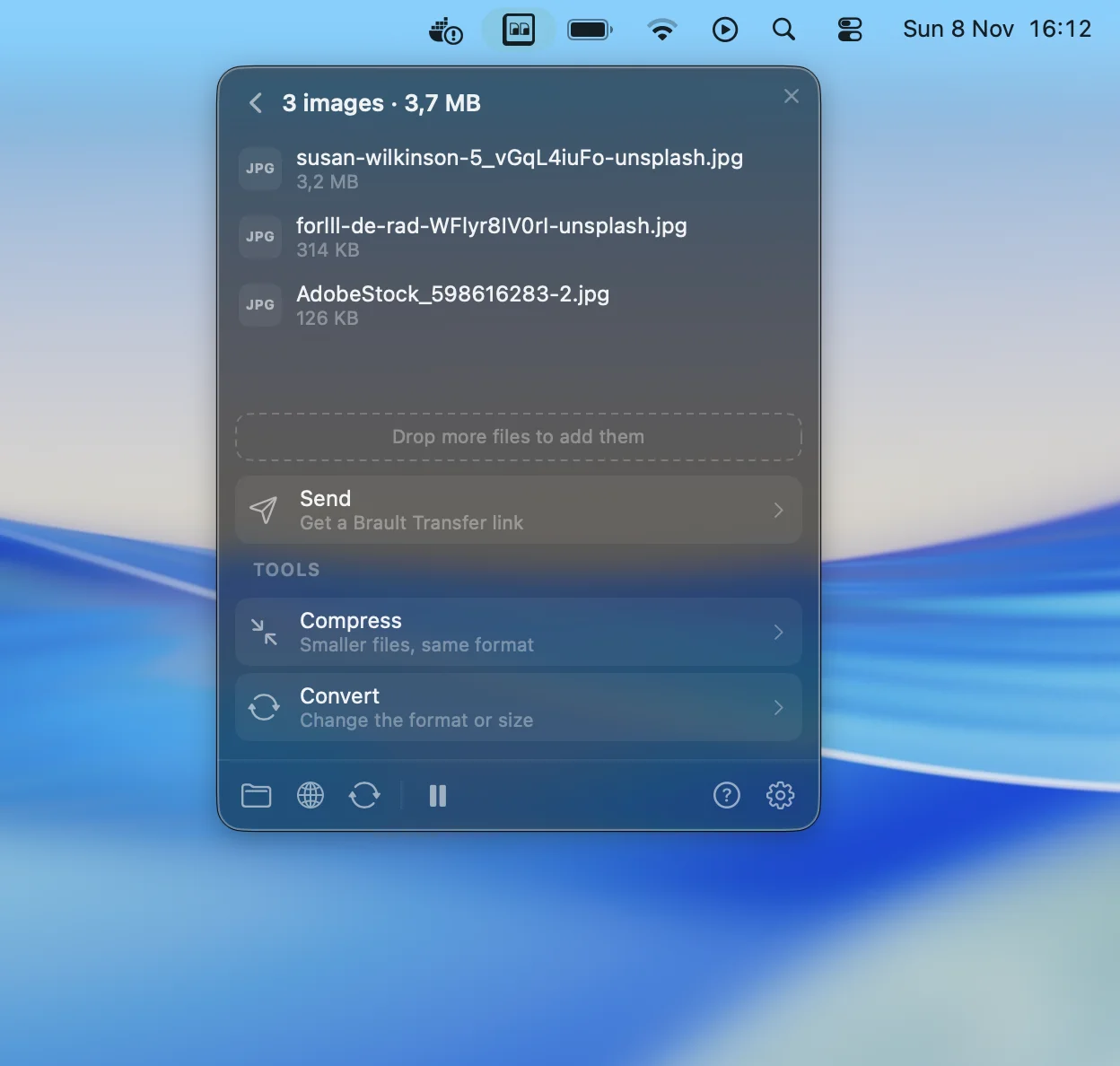
Brault Desktop for Mac compresses PDFs, images, video and audio in batches of up to 100 files: drop the files on the menu bar icon or the panel, choose Compress, and pick a level, Light (high quality, less compression), Balanced (the recommended default) or Max (less quality, high compression). PDFs are compressed on Brault's servers and saved to Downloads as name-compressed.pdf, and from the same panel the results can be sent with a Brault Transfer link or added to the team's Brault library. Files already in a library compress from Download as… in the web file viewer. Convert images on the Mac the same way; how to convert HEIC to JPG on Mac covers the photo side.
Convert and compress are included in Pro at $12 a month billed annually for individuals (2 TB, 100 conversions a day) and Growth at $70 for teams (5 TB, 4 users included, $4 per extra user, 500 conversions a day); they are not part of the Free plan. Details are on the convert and compress page and plans on the pricing page.
Frequently asked questions
How do I compress a PDF on a Mac for free?
Open the PDF in Preview, choose File, then Export, set Quartz Filter to Reduce File Size and click Save. In a test on macOS 26.5, that took a 23.4 MB, 12-page PDF with six photos down to 1.5 MB, but the photos came out visibly soft. For a sharper result, the free Ghostscript command with the /ebook setting took the same file to 0.8 MB with more detail kept.
Why does Preview make my PDF blurry?
Preview's Reduce File Size filter scales every image down and recompresses it at a low JPEG quality, and it has no setting to change either. In the test, the photos went from 3,000 to about 1,000 pixels wide and lost their fine grain. Text stays sharp because it is not an image; scanned pages, which are images, suffer the most.
How do I compress a PDF on a Mac without losing quality?
Use Ghostscript with the /ebook setting for documents read on screen, or /printer when the PDF will be printed. Ghostscript is free, installs with Homebrew, and resamples images to 150 dpi with /ebook, which in the test produced a smaller and sharper file than Preview. No method removes data without some loss; /printer keeps 300 dpi images and barely shrinks a PDF whose photos are already JPEG.
Do the Optimize images for screen and Save images as JPEG options make a PDF smaller?
Only when the images inside are not already compressed. Apple added these checkboxes to Preview's Export dialog; on a PDF whose photos were already JPEG, ticking both left the file at 23.4 MB in a test on macOS 26.5. They help with PDFs that embed uncompressed images, such as some scans and exports from design tools.
How small does a PDF need to be to send by email?
Under about 18 MB for Gmail, Yahoo or Outlook.com, which accept 25 MB per message, because email encoding makes attachments about a third larger. A 23.4 MB PDF fails even though it looks smaller than the limit. Compress it, or send it as a link with a transfer service such as Brault Transfer.
Key takeaways
- The built-in way to compress a PDF on a Mac is Preview: File, Export, Quartz Filter, Reduce File Size. It cut the test PDF from 23.4 MB to 1.5 MB with soft photos.
- Preview's Optimize images for screen and Save images as JPEG options did not shrink a PDF whose photos were already JPEG.
- Ghostscript's
/ebooksetting, free through Homebrew, made the same PDF 0.8 MB with sharper photos, and the testedfindloop compresses a whole folder in zsh or bash. - Keep PDFs under about 18 MB for 25 MB email limits; send the full-quality original as a link instead of compressing it.
- Teams that compress and send every week can do both from Brault Desktop for Mac with Light, Balanced and Max levels, on Pro or Growth.
Want to compress a batch and send it from the menu bar? Try Brault free.